
Google Chrome
-
Login to your recorder on https://connect.specotech.cloud or the IP address.
-
Download and run the plugin as normal. If prompted to download the plugin again, select the settings icon, then select Site Settings
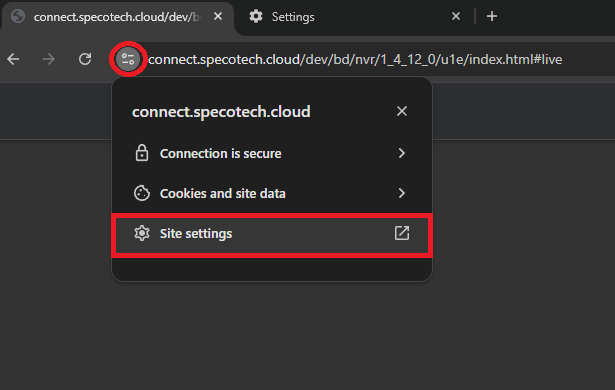
-
Scroll down to Apps on Device and select Enable. You must then reload the page for changes to take effect.

Microsoft Edge
-
Login to your recorder on https://connect.specotech.cloud or the IP address.
-
Download and run the plugin as normal. If prompted to download the plugin again, select the lock icon, then select Permissions for this Site

-
In the search settings bar, type in Apps on Device

-
Next to “Allowed to access other apps and services on this device” select Add Site

-
Add https://connect.specotech.cloud OR the IP address of your recorder. Then reload the page for the changes to take effect.

If the plugin will still not run on Chrome or Edge, check if your anti-virus is blocking the plugin. You can also try and run the plugin as administrator if you have admin credentials for the PC.
Initial submission Date: May 21st, 2026

Article authored by: Kevin Holland, Technical Support Lead