
Section I: Immix Setup
Section II: NVR Setup
Section III: IP Camera Setup
Section IV: Immix Supported Event Types
Immix Setup
Step1: Login into Immix
-
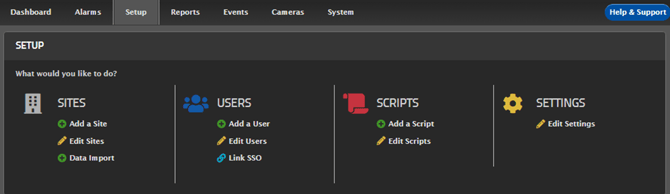
Click on "Setup" to begin the setup process.

Step 2: Add a New Site
-
Click on "Add a New Site" to begin the setup process.
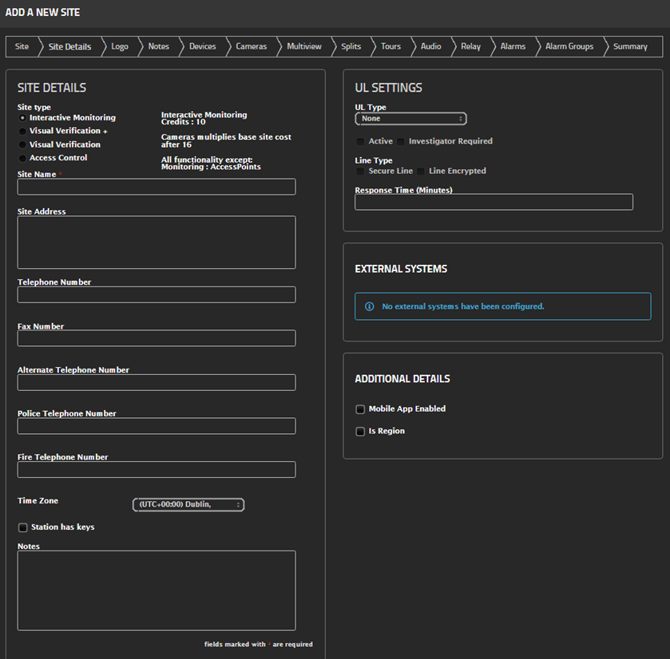
Step 3: Enter Site Information
- Fill in all applicable details for the site, such as name, address, time zone, and any other required fields.
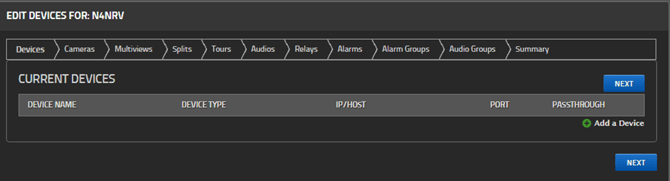
Step 4: Current device
- Click on Add a Device
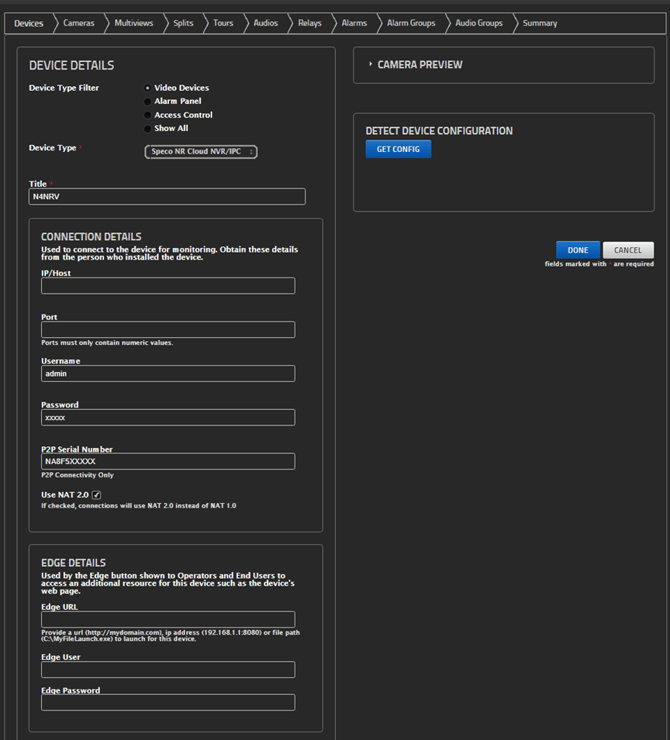
Step 5: Select Device Type
- Set the Device Type filter to Video Devices.
- Choose the appropriate device:
- Speco NR Cloud NVR/IPC (for QR code setup or IP Address configuration).
- Enter all required login credentials for the device.
- Click Get Config to retrieve the device information.
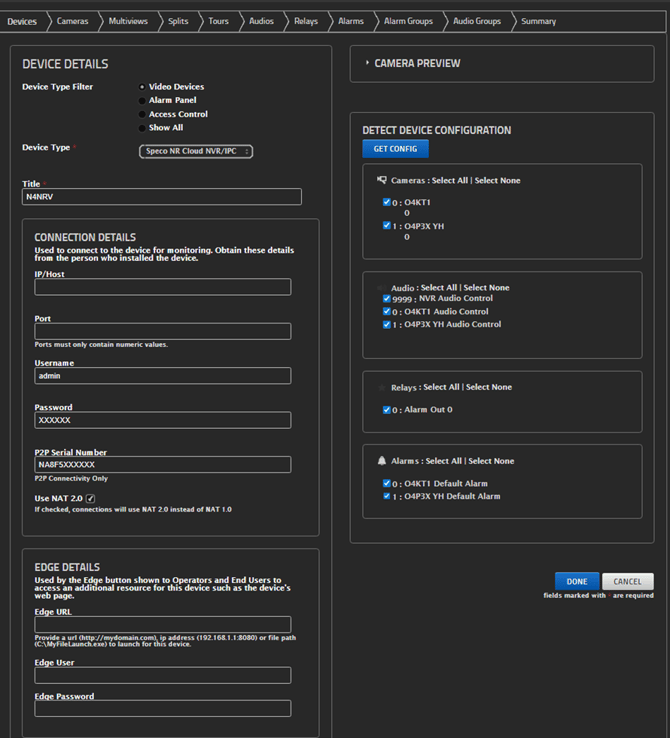
Step 6: Configure Alarms
- Navigate to theAlarms
- Add the analytics you want to receive alarm events for.
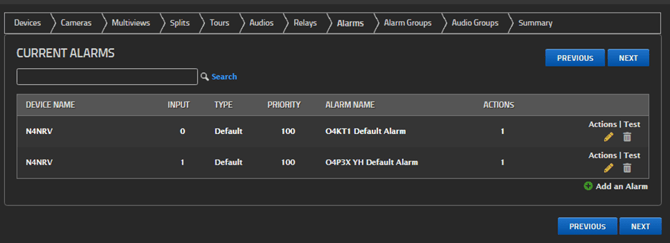
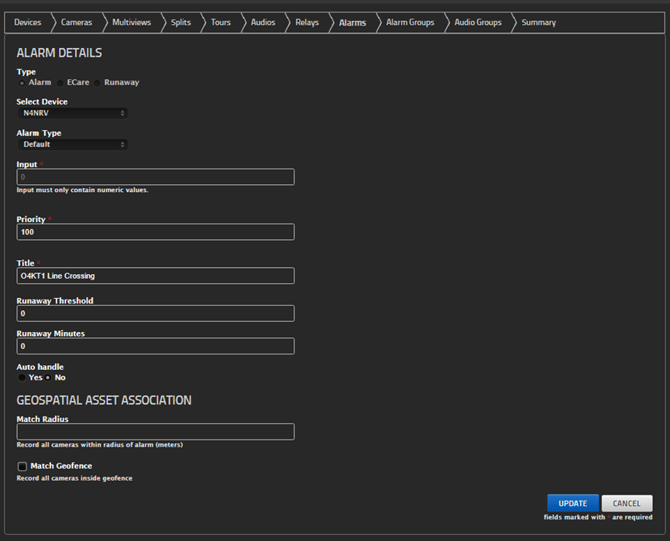
Configure Alarm
- After configuring the Alarm, click the pencil to open the settings.
- Under Title, enter analytic information.
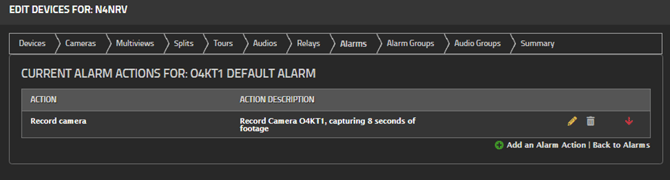
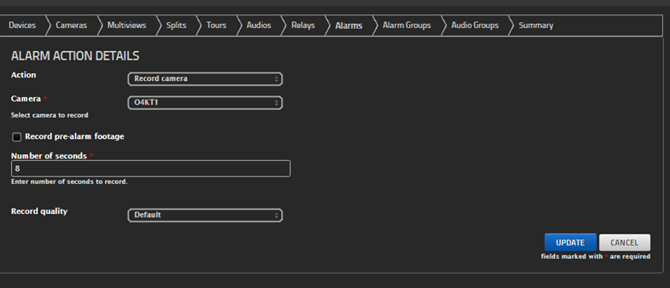
Step 7: Configure Actions
- After configuring the Alarm, click Actions to open the settings.
- Under Action, choose Record Camera.
- Under Camera, select the appropriate camera.
- Set the duration to 8 seconds.
Step 8: View Live Video & Alarms
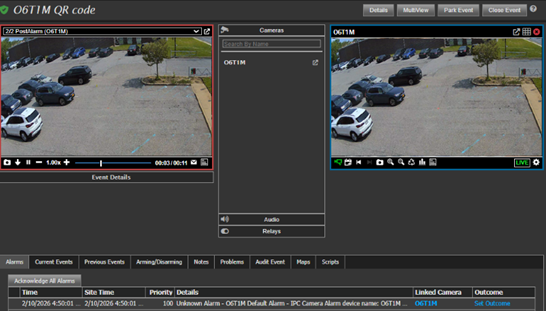
- After the site is set up in IMMIX and the NVR/IP camera has been configured, you can view live video and monitor any alarm events associated with the selected analytics. You will also have the ability to listen and talk down to the site, as well as trigger relays connected to the NVR/IP camera.
NVR Setup
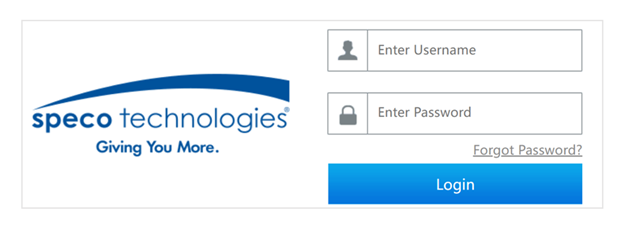
Step 1: Log In to Your Speco NVR
- Enter your username and password.
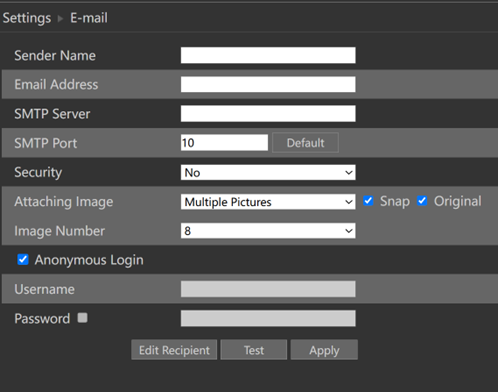
Step 2: Email Configuration
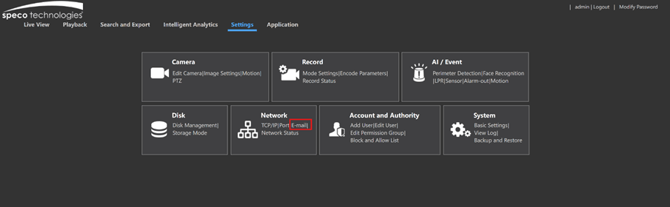
- On the recorder, navigate to:
Settings > Network Setup > Email Configuration - In the Email Notification Settings, use the email setup information provided by Immix.
- Add your Immix SMTP server IP address, port and S# email address
- Ensure Anonymous Login is checked.
- Select Edit Recipient and enter your S# email address provided by Immix.
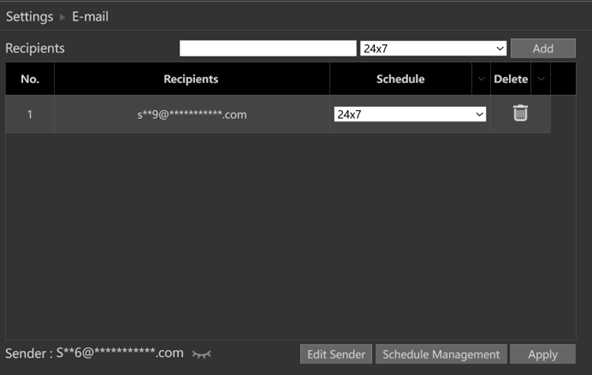
Step 3: Port Settings
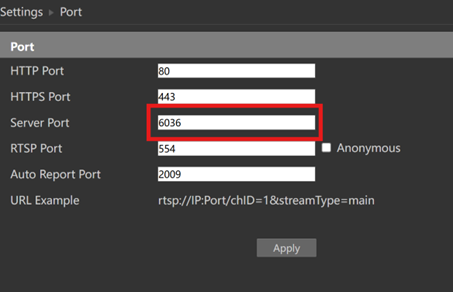
- On the recorder, navigate to:
Settings > Network > Port - Server Port: This is the port number that should be entered in the Port field in Immix when connecting to your
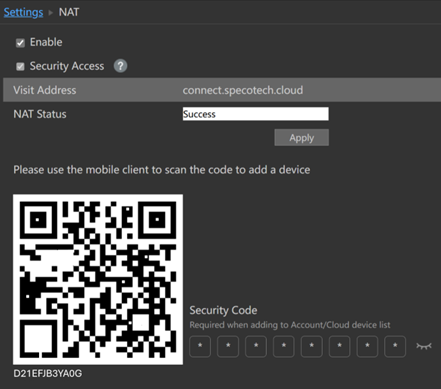
Step 4: Configuring NAT 2.0
- Navigate to Settings > Network > NAT on your Speco NVR.
- Make sure NAT is enabled.
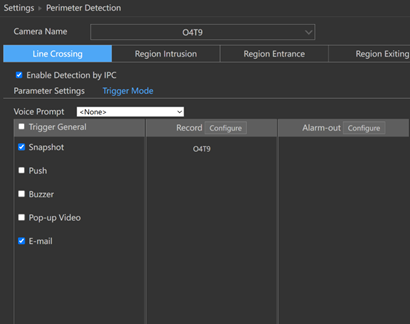
Step 5: Analytics Settings
- Navigate to:
Settings > AI / Event - For each analytic you've configured:
- Make sure both Email and Snapshot options are enabled.
IP Camera Setup
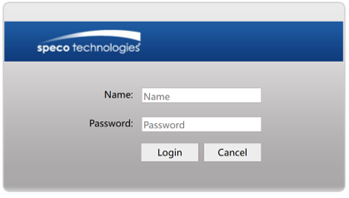
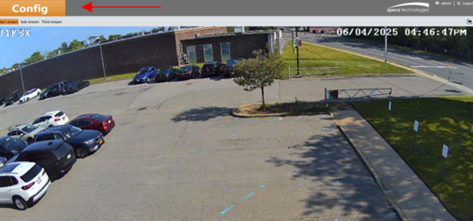
Step 1: Log In to Your Speco IP camera
- Enter your username and password .
- Click on Config
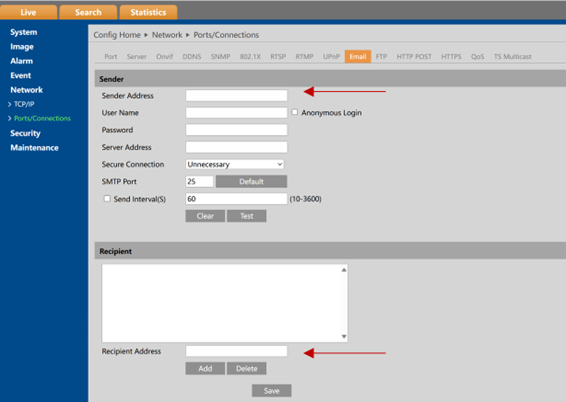
Step 2: Email Configuration
- On the IP camera, navigate to:
Network > Ports/Connections > Email - In the Email Notification Settings, use the email setup information provided by Immix.
- Add your Immix SMTP server IP address, port and S# email address
- Ensure Anonymous Login is checked.
- Add the email address provided by Immix to the Email Notification section at the bottom.
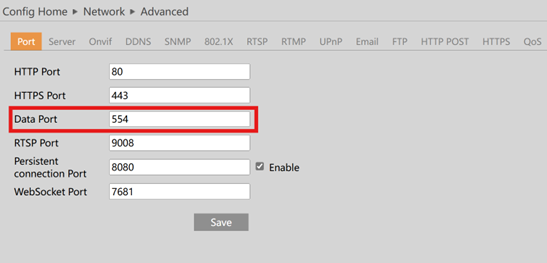
Step 3: Port Settings
- On the IP camera, navigate to:
Network > Port / Connections
- Data Port: This is the port number that should be entered in the Port field in Immix when connecting to your site using an IP address.
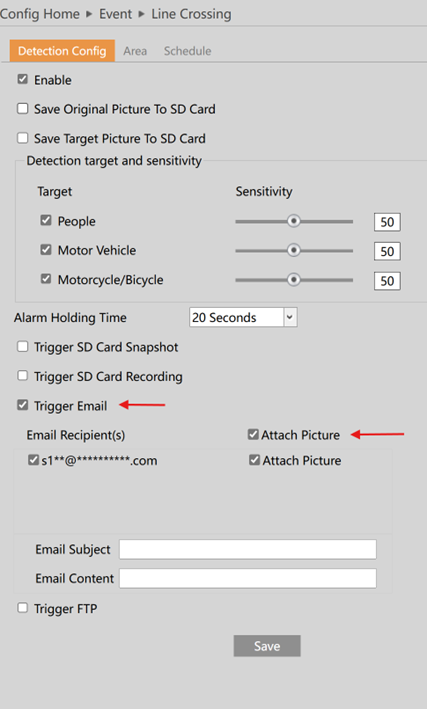
Step 4: Finalize Analytics Settings
- Navigate to:
Settings > Event - For each analytic you've configured:
- Make sure both Email and attach picture options are enabled.
SECTION IV: Immix Supported Event Types
| Motion Detected | Vehicle Detected | Temperature Out of Range | Population Density | Illegal Parking |
| Video Loss | Object Detected | Sensor Error | Strange Plate Recognition | Loitering Detection |
| Input Alarm | Unknown Alarm | Out of Sight | Successful Plate Recognition | Audio Exception |
| Sensor Alarm | Object Entered | Door Sensor | Face Recognition Stranger | Sensor Alarm |
| Access Granted | Object Exited | Temperature | Face Recognition Successful | Temperature Alarm |
| Access Denied | Object Appeared | Sensor Tag Error | Smart AOI Leave | License Plate Detection |
| Door Forced | Object Disappeared | Sensor Monitor | Face Detection | Fire Detection |
| Fire Alarm | Object Stopped | Mains Failure | Smart AOI Entry | |
| Panic Alarm | Object Dwell | High Water Level | Temperature Alarm | |
| Duress | Object Direction | IPC Offline | Signal Shelter | |
| Device Arm | Object Speed | HDD Removed | Personnel Intrusion | |
| Device Disarm | Object Abandoned | HDD IO Error | Target Counting By Line | |
| Tamper Alarm | Object Removed | No Disk | Region Exit | |
| HDD Full | Object Colour | Article Lose | Region Entrance | |
| Device Shutdown | Tailgating | Line Crossing | Target Counting By Area | |
| Device Powerup | Line Counter | PVD Alarm | Intrusion Perimeter | |
| Device Invalid Login | Logical Event | Audio Exception | Tampering | |
| System Event | Config Changed | Loitering | Line Crossing Tripwire | |
| Test Alarm | Counter Changed | Intrusion Detection | Face Detection | |
| Person Detected | Intruder Detected | Video Exception | Object Abandoned \ Missing |
Initial submission Date: March 3th, 2026