
- Before plugging in your access points, log into your recorder and go to Settings > System > PoE Settings, then disable plug and play on the port you will connect the access point to.
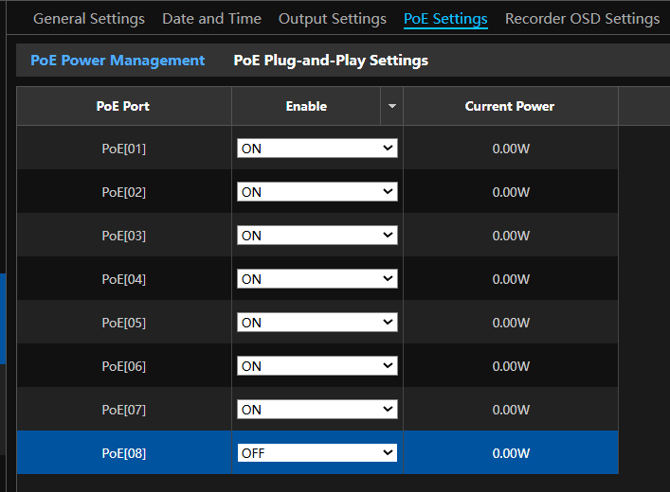
Plugging in the AP2PMD and any cameras into the PoE ports before disabling plug and play can lead to IP conflicts
- Plug the AP2PMD into the port you disabled plug and play on. Connect your PC directly into one of the ethernet ports on the AP2PMD.
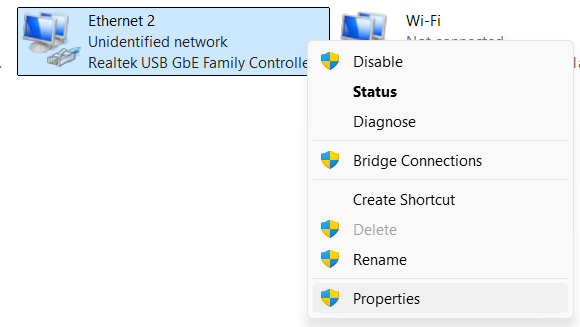
- Go to your PCs network settings by typing in view network connections, right click on your ethernet adaptor and select Properties
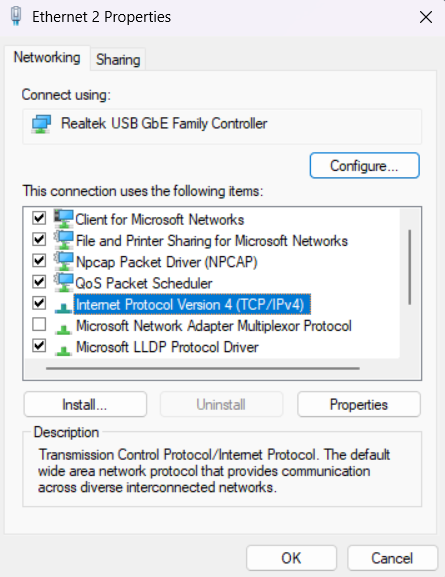
- Select IPv4 and select Properties
-
Select 'Use the following IP address" and set your IP address to 172.20.X.X and the subnet mask to 255.255.0.0
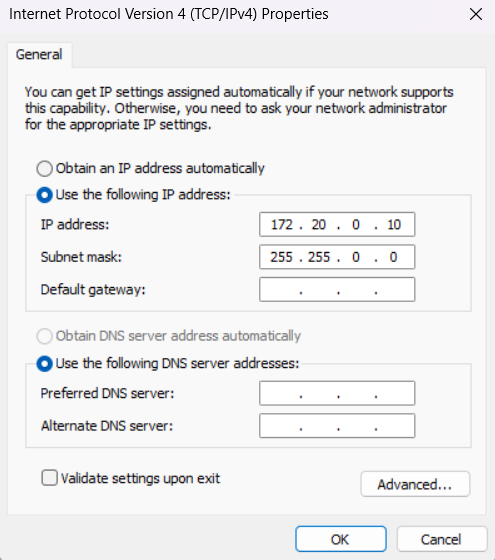
The AP2PMD default management address will be 172.20.0.1 or 172.20.0.2. Please select another address in this range to avoid an IP conflict.
- Open a web browser and type in 172.20.0.1 to login to the device. Enter the default password: admin
-
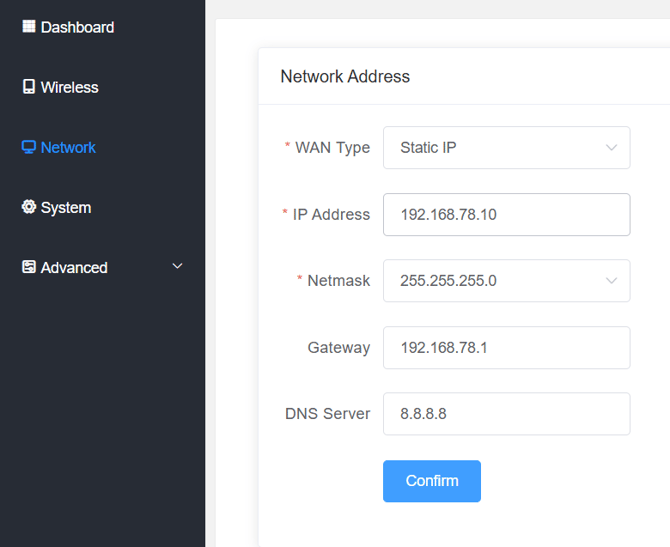
Enter the network settings, change the IP address to static, and assign the IP address in the range of the PoE ports. The default PoE network is 192.168.78.X. The recorder will give out addresses between 101-116, so avoid these to prevent an IP conflict.
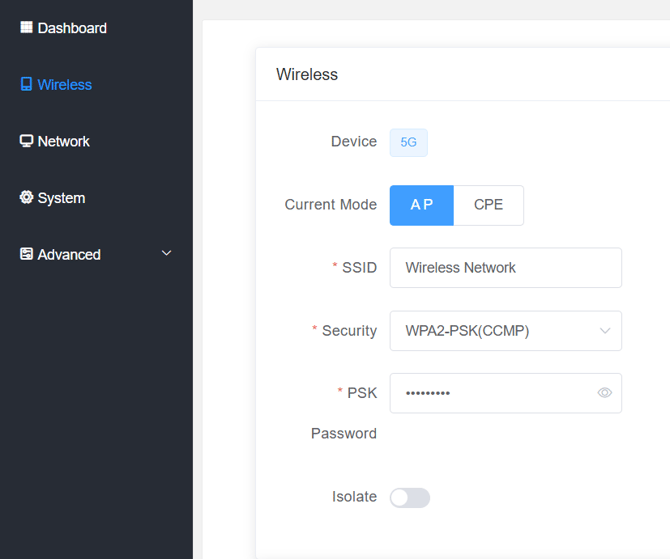
- Enter the Wireless settings and configure your SSID and password. Keep the current mode as AP
- Connect your PC directly into the ethernet ports of your other AP2PMD and log into the default address with 172.20.0.1
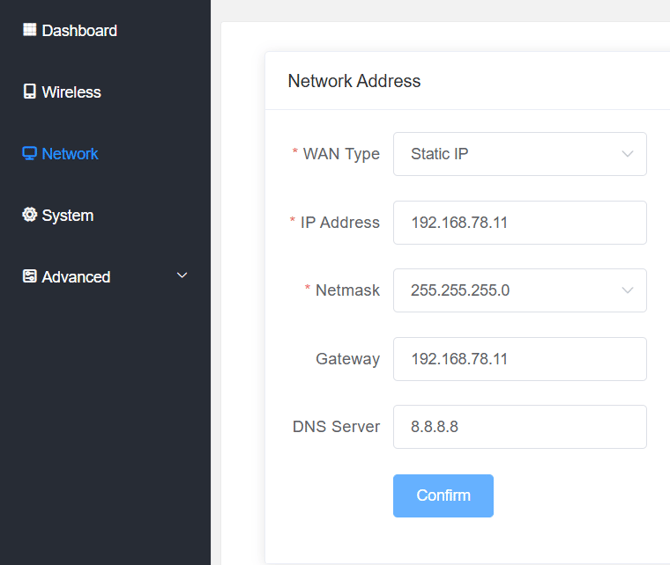
- Go to the Network settings and static the 2nd AP2PMD to the same network as the first. Make sure the last number is unique to avoid an IP conflict.
- Enter the Wireless settings, change your current mode to CPE and input the SSID and password you input on the AP
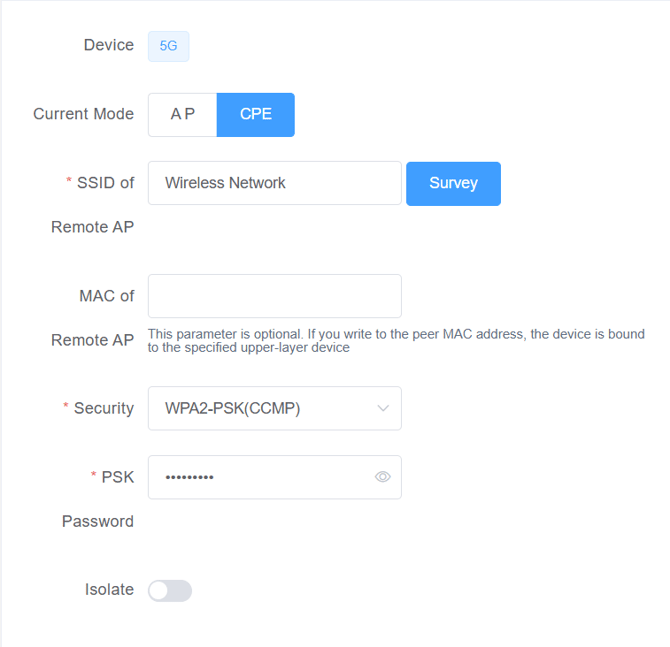
You can connect up to four clients to a single AP. Repeat these steps on as many clients as you will be connecting.
- From the Dashboard, you should now be able to see the device under the connected stations section.

- With your PC still connected to the AP2PMD, run one of the Speco scanners and statically set the cameras IP address to the correct network. The default IP address of the cameras will be 192.168.226.201
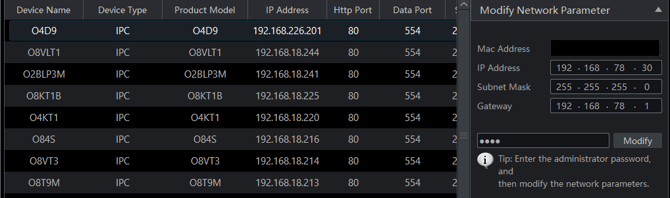
If connecting multiple cameras, it is recommended to have one plugged in at a time to avoid IP conflicts on the default 192.168.226.201 address
- Add the cameras with the statically assigned IP address

Initial submission Date: October 27th, 2026

Article authored by: Kevin Holland, Technical Support Lead