
SecureGuard Cloud (SGC) – Roles, Permissions & Site Users
From the Dashboard Level
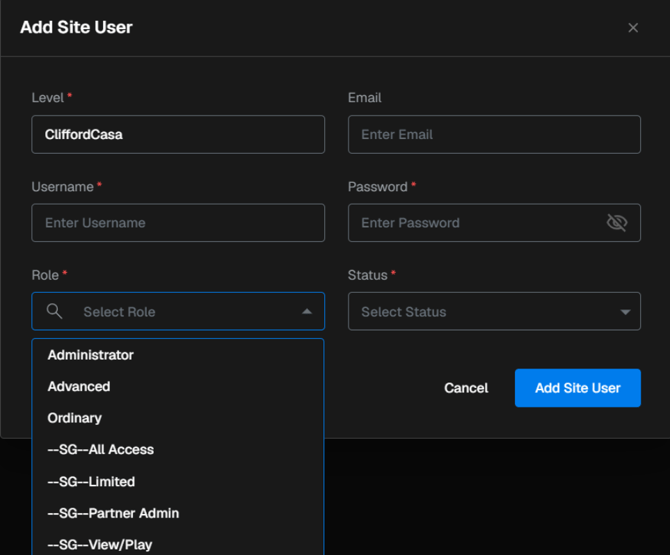
- Site Users are users associated with the account who are assigned to the NVR(s) or camera(s).
- The system will display a list of existing Site Users
- Selecting + Site User adds a user to the NVR(s) or camera(s). That user will then have access to the NVR locally, Speco Blue VMS, or Speco Blue App.
- Represented by: --SG-- (Site Permission Name)
- If Role does not start with –SG— That role was created/available in the NVR/Camera
Important: A role must be created with the functions that will be available in the NVR or camera under Site Permissions.
Settings Gear on Left Side-This is for SecureGuard Cloud Access
Users → Partner Management
Partner User
- Usually the highest-level user at the dealer who will be responsible for the account.
- Has the ability to have access to multiple accounts
- When selecting + Add Partner User, an email address is required.
- This sends an email allowing the user to create a password for their login.
- The user's email address becomes their username, and the password is whatever they set.
Step 1: When creating the user, select whether they will receive email notifications of site status changes. This is the first step under Partner User information.
Step 2: Choose the assigned account(s) and select the option to provide access to all future accounts as they are added. (Optional)
Step 3: Choose an existing role, clone role, or start from scratch.
Pay special attention to Site Management and the Connect, and Configuration if you want that user to have access to the NVR/Camera to make changes remotely through the SecureGuard Cloud. (This is done at the Dashboard Level).
*Site Permissions determine what can be done on the site (NVRs or cameras) while in SGC.
Installer – Partner Management access is used to allow an installer to access SGC for remote management.
When selecting + Add Installer, an email address is required because the system sends an email allowing the installer to create a password for their login
on the Secure Guard Cloud mobile app.
- The user's email address becomes their username, and the password is whatever they set.
- The installer is only able to access through the mobile app, designed to add sites to SecureGuard Cloud directly after install.
Step 1: When creating the installer, choose the Auto Delete Days. This will cancel access at the end of the selected time period. i.e. 5 Days
Step 2: Choose which account(s) the installer will be able to access.
Step 3: Choose an existing role or create one from scratch.
Pay special attention to Site Management and the Connect, and Configuration if you want that user to have access to the NVR/Camera to make changes remotely through the SecureGuard Cloud. (This is done at the Dashboard Level).
*Site Permissions determine what can be done on the site (NVRs or cameras) while in SGC.
Account Management
From Settings → Account Management.
Under Account:
- Displays active accounts.
- Select + Add Account to create an account.
- This is a toggle option.
- If Yes is selected, the plan must be chosen.
- The information icon next to the plan provides a brief description.
- The fields are grayed out until an email address is entered.
- This step is only required if you want to associate a contact.
- Otherwise, select Skip & Submit.
Step 1: Enter the account name and select whether they will have a storage plan.
Step 2: Enter the contact details.
The account will have access to all sites under this account. It cannot have access to any other created accounts.
Account Management – User
Select + Add User.
Step 1:
- Enter the required Name and Email.
- Choose the Account for that user.
- Select whether the user will receive email notifications when site changes occur.
- Choose the type of access:
- Mobile User
- Web User
- Or Both
- Set the schedule according to the access required. This step allows you to control when the user can have access to the account .i.e A security guard that only needs access during their shift.
- Top level: Entire account
- Next level: Site(s) within the account
- Individual Camera level: Camera or cameras (for example, 2 of 4 cameras)
- Choose an existing role, clone role, or create one from scratch.
Step 2: Choose where the user will have access:
Step 3: Manage permissions.
- Choose an existing role, clone role, or create one from scratch.
Pay special attention to Site Management and the Connect, and Configuration if you want that user to have access to the NVR/Camera to make changes remotely through the SecureGuard Cloud. (This is done at the Dashboard Level).
When Add User is selected, the user will receive an email with their username and instructions to set their SGC password.
- The users email address becomes their usermame, and the password will be whatever they set.
The user's access will be limited to the account and restricted based on the choices made during setup, which includes limiting the amount of cameras if desired.
Hints and Definitions:
- Role: This is created to establish what a Secureguard Cloud User can do when logging into and navigating through the software platform.
- Site Permission: This is created to set permissions within the NVR or Direct to Cloud Camera for when someone accesses that machine. Much like creating a Permission when programing an NVR.
- Partner User: Designed for a individual(s) that is a representative of the installing dealer for the ability to manage the SecureGuard Cloud platform. Could include access to an NVR or Direct to Cloud Camera for troubleshooting purposes.
- Account User: Designed for the end user(s) to have limited access to the cloud for viewing, playback, search and export. Can be limited to Web Access Only, Phone Application Access Only (or both) and an Access Schedule should be considered as appropriate
Initial submission Date: September 1st, 2026

Article authored by: John Clifford, National Trainer

Article transcribed by: Kevin Holland, Technical Support Lead