
Initial Install Tips:
-
Initially connect the doorbell hardwired to the LAN for configuration. This will need to be done regardless of a LAN or Wifi setup.
-
If the doorbell is added to a recorder, it must also be added separately to the Speco Blue app to receive doorbell ring notifications.
-
Insert and format a microSD card before enabling event recording.
Table of context:
Part 1: Adding the O2DB1 to the Speco Blue App
Part 4: Adding the O2DB1 to a N32NRN
Part 1: Adding the O2DB1 to the Speco Blue App:
- Log in to Camera Interface
- If you need instructions on finding the camera on the network please refer to article here.
- If you need instructions on finding the camera on the network please refer to article here.
- Open a web browser and type the IP address of the O2DB1 doorbell camera into the address bar.
- Enter the username (admin) and password (1234) to log in.
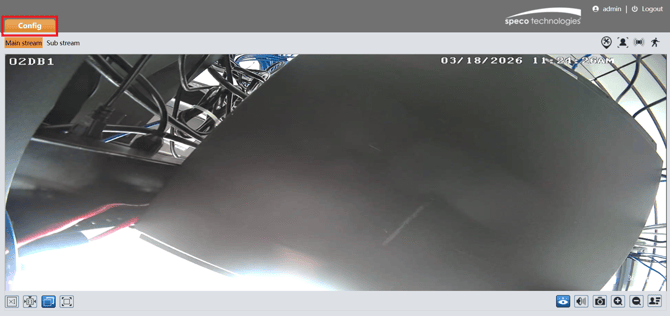
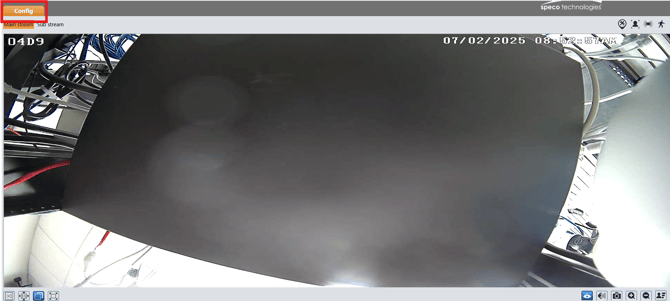
- Click on the Config tab in the top left of the window
Go to the Network > TCP/IP
- Ensure the camera is set to Static.
-
- If the camera is connected directly to a PoE port on a Speco Blue recorder, configure the DDNS.
- Click on Ports and Configuration.
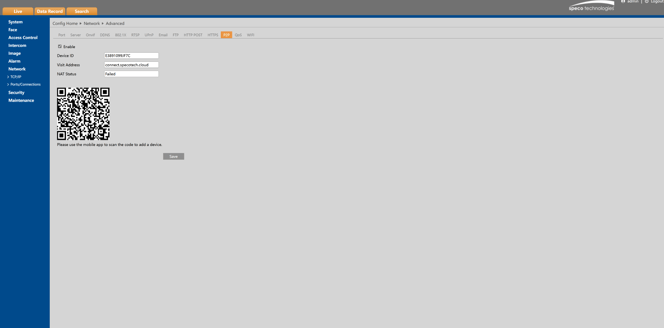
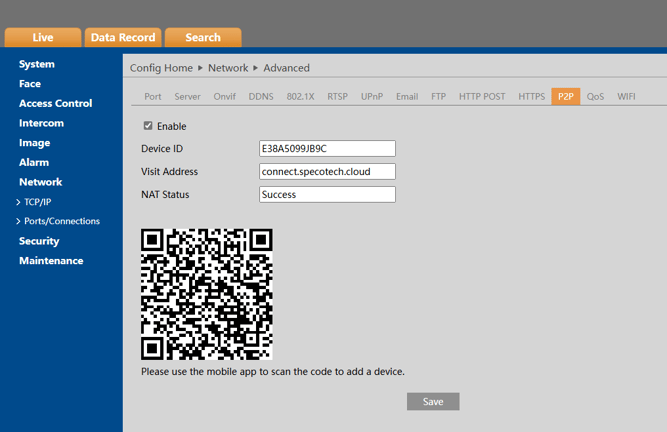
- Click on P2P and ensure the NAT status is Successful.
-
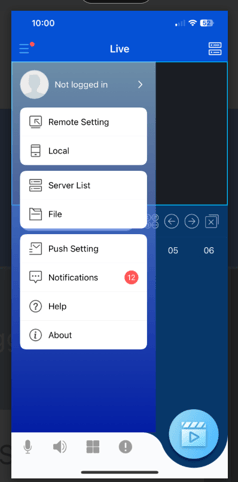
Open the Speco Blue App and log in to a Speco Blue account.
-
Create one on here if needed
-
-
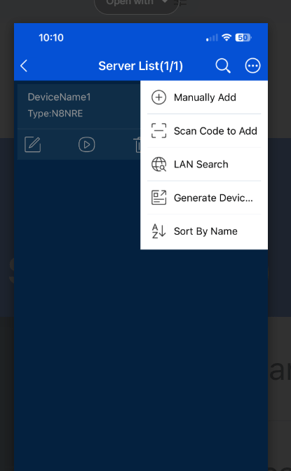
Go to Server List within the app.
-
Tap the three dots in the upper right-hand corner and select Scan Code to Add.
-
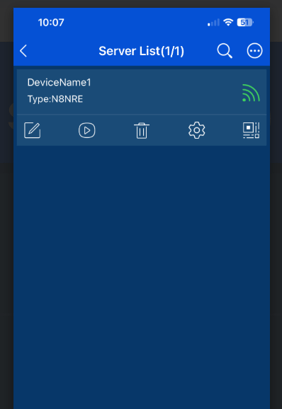
- Scan the QR code from the P2P screen in the camera menu from a web browser
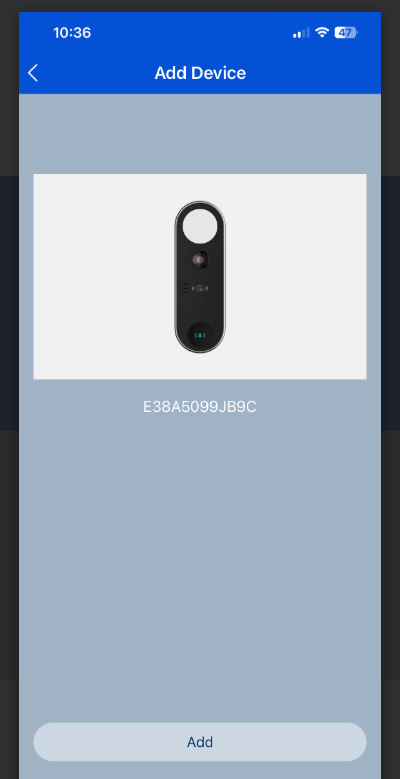
- Tap Add
- The O2DB1 is now added to the Speco Blue App
Part 2: Enabling Audio
-
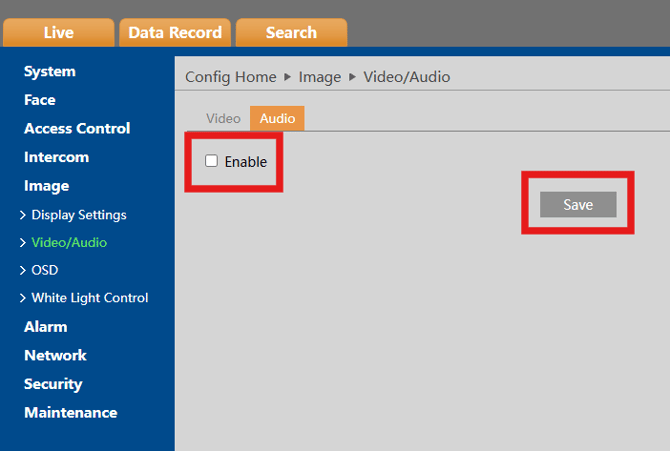
Enable the Camera's Microphone, by default this is turned off
-
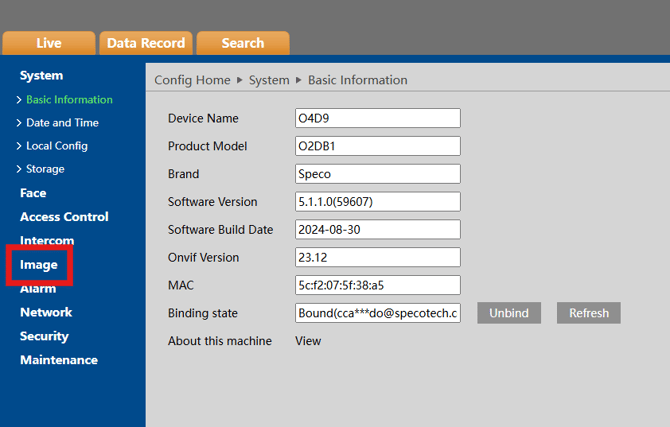
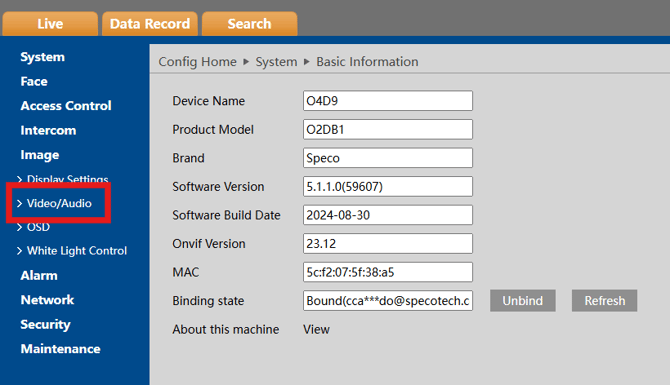
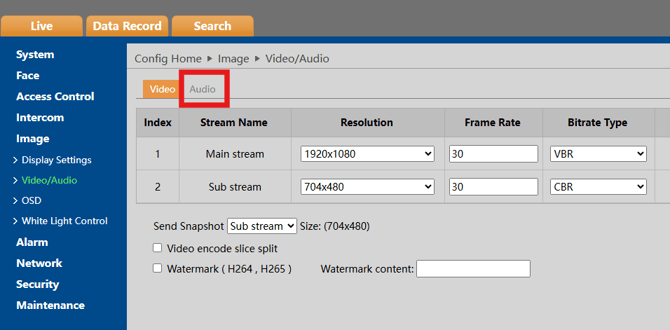
Go to Config > Image > Video/Audio > Audio > Enable
-
Part 3: Setting up Wifi
-
A wireless network will need to be connected selected and a password will need to be entered for it before disconnecting the wired connection.
-
Navigate to Network>Ports and Connections>Wifi
-
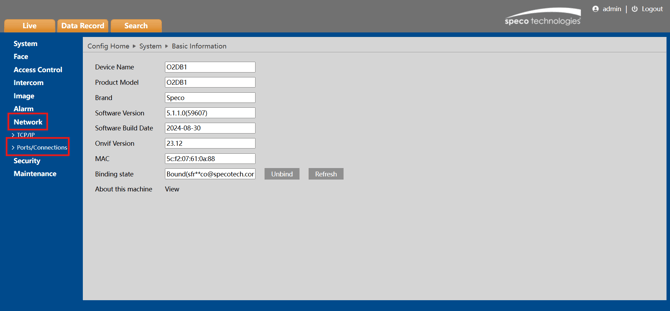

- Select the desired Wifi Network from the list or manually enter the SSID.
- Enter in the Password for the corresponding network and click Save

-
Ethernet will now be able to be disconnected. Power will need to remain connected
Part 4: Adding the O2DB1 to a N32NRN
-
Connect the doorbell to a PoE switch on the same network as the recorder.
-
Open Speco Blue Scanner and locate the O2DB1.
-

- Assign a static IP matching the camera network scheme and set DNS to match the recorder.

- Log into the recorder -> Settings -> Camera -> Add Camera and add the O2DB1.

- Verify the camera feed appears and is functioning
Part 5: Adding the O2DB1 to an NRX
- Connect the doorbell to a PoE port on the back of the recorder
- The doorbell should auto populate a channel and will appear on the camera list with [POE] as a prefix

- Verify that the camera feed appears and is Functioning
Part 6: SD Card Setup
-
Insert an SD card into the SD Card slot on the back of the device
- On the web interface of the camera, navigate to Config>System>Storage
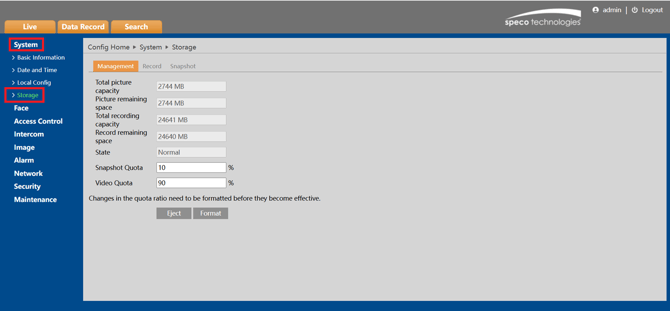
- The card will initially need to be formatted and will not be usable until the Format button is pressed. Keep in mind this will Erase All Data on the existing card
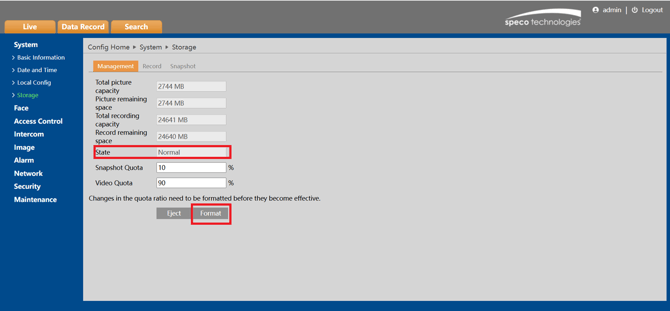
- Once formatted. Recording must be toggled on.
- Navigate to Record and select Enable Schedule Record

- Snapshots can also be configured under the Snapshot Tab by selecting Enable Timing Snapshot

Initial submission Date: December 11, 2024

Article authored by: Tim O'Brien, National Trainer

Article transcribed by: Christopher Cataldo, Technical Support Lead

Article revised by: Michael Pagano, Tech Support Tier 1 on March 19th 2026