
Managing Camera Licenses (Camera Limit)
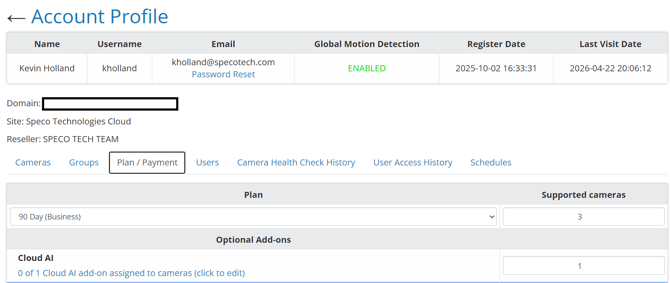
Your billing of camera quantity is based on your Camera Limit — your licensed capacity to deploy cameras — not the number of cameras currently in use.
-
Camera Limit = licenses you provision and utilize
-
Deleting cameras does not change billing
-
Billing only changes when Camera Limit is updated
When to Change your Camera Limit
-
When adding cameras during deployment
-
Removing cameras permanently
-
Aligning licenses with what you're actual using
How To Adjust Camera Limit
1. Set Capacity Based on Deployment Stage
Increase Camera Limit as you deploy cameras (typically in batches). Reduce it when cameras are permanently removed.
2. Remove / Add Cameras (Optional)
-
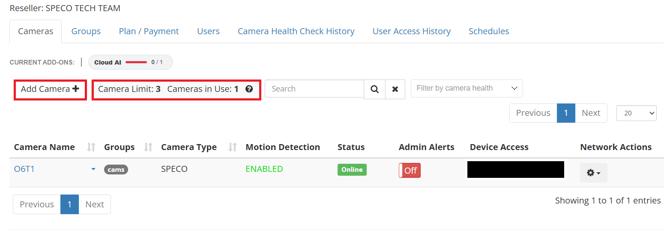
Go to Cameras tab
-
Delete unused cameras for cleanup or add new ones within your Camera Limit
-
Just adding or deleting cameras will have no impact on billing
3. Update Camera Limit (Required)
-
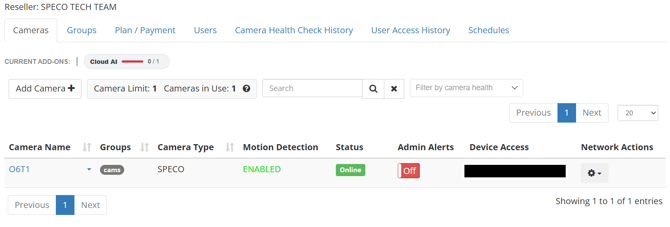
Go to Plan / Payment
-
Adjust Camera Limit to match your active needs
-
Camera Limit is what controls your billing, not how many cameras you have active

4. Verify
-
Camera Limit reflects intended license count
-
Billing aligns with this number
How to Delete an Account
-
Select the account username you want to delete from the admin portal
- Select Plan / Payment and scroll down to Delete My Account
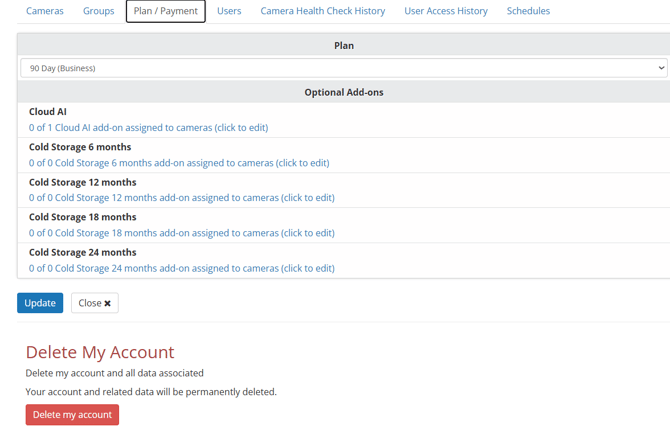
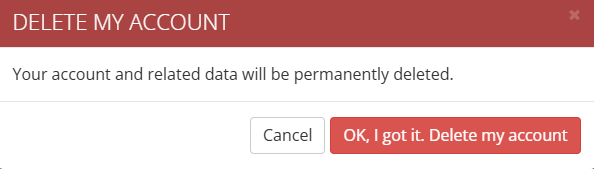
- Confirm the deletion of your Speco Cloud account
Action Outcome
Delete cameras No billing change
Adjust Camera Limit Billing updates
Best Practices
-
Treat Camera Limit as your active license pool
-
Add licenses as deployments grow
-
Reduce licenses when no longer needed
-
Review limits periodically
Key Reminder
Camera Limit controls billing — cameras reflect usage.
Initial submission Date: April 22nd, 2026

Article authored by: Kevin Holland, Technical Support Agent - Tier 1