
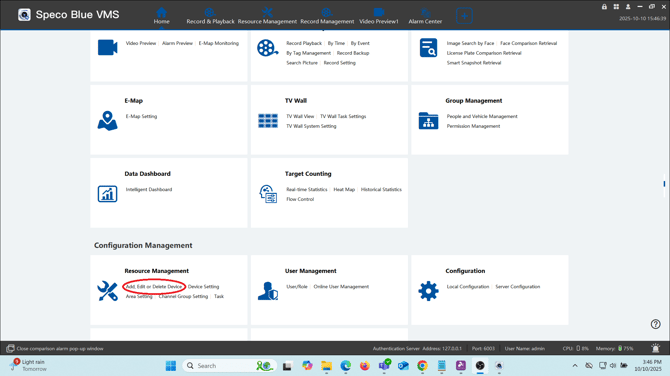
- Go to the Resource Management tab
- Click Add, Edit or Delete Device
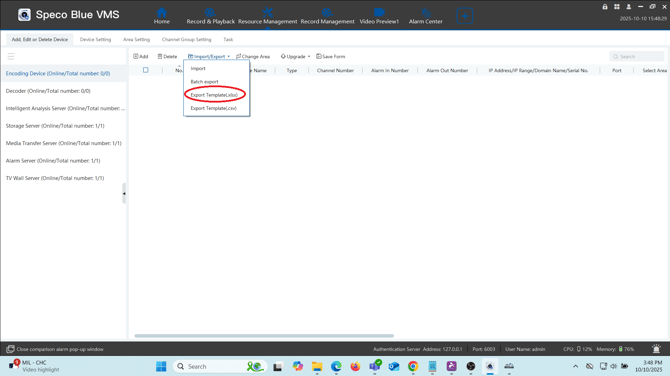
- Click on Import / Export
- Then Export Template(.xlsx) to generate the needed template
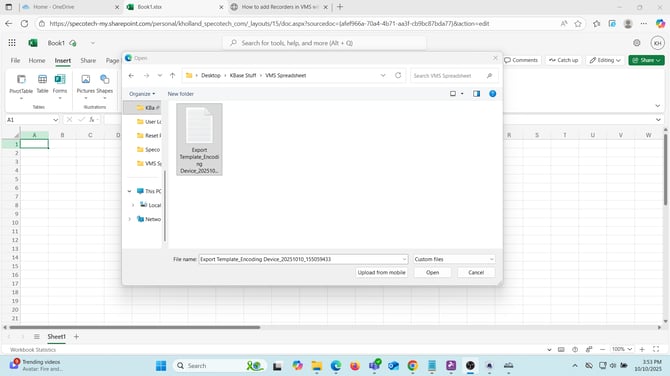
- Open up Microsoft Excel and import the template file you exported by going to File > Open > Open files from this device
- Select the .xlsx file exported from Speco Blue VMS.
- Fill out the spreadsheet with the desired ino

- The spreadsheet will contain 5 categories:
-
- IP: This is where you will place your recorder or camera's IP address, serial number or domain name.
-
- Port: the port used for the connection. By default, 6036 will be used when connecting with IP address or domain name. No port will be used when connecting with the serial number.
- Default Recorder - 6036
- Default Speco IP Camera - 554
- ONVIF IP Camera - 80
- Port: the port used for the connection. By default, 6036 will be used when connecting with IP address or domain name. No port will be used when connecting with the serial number.
-
- Protocol: Type of protocol being used to connect.
- User Name: Username used to log into the recorder / camera that you are adding.
- Password: Password used to log into the recorder / camera that you are adding.
- Export completed spreadsheet as a CSV file by going to File > Export > Download as CSV

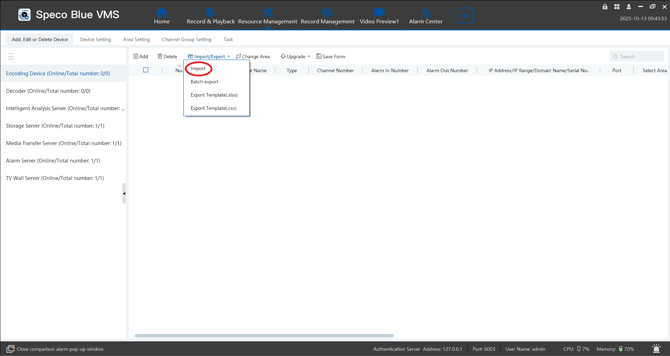
- Import your CSV file by clicking Import/Export, then Import
- Select the CSV file exported from Excel
- The recorders will be added based on the credentials entered into the spreadsheet.
Initial submission Date: October 14, 2025

Article authored by: Kevin Holland, Technical Support Agent - Tier 1