
- Use the Speco Blue Scanner to find the IP address of the server by changing the type to Storage.
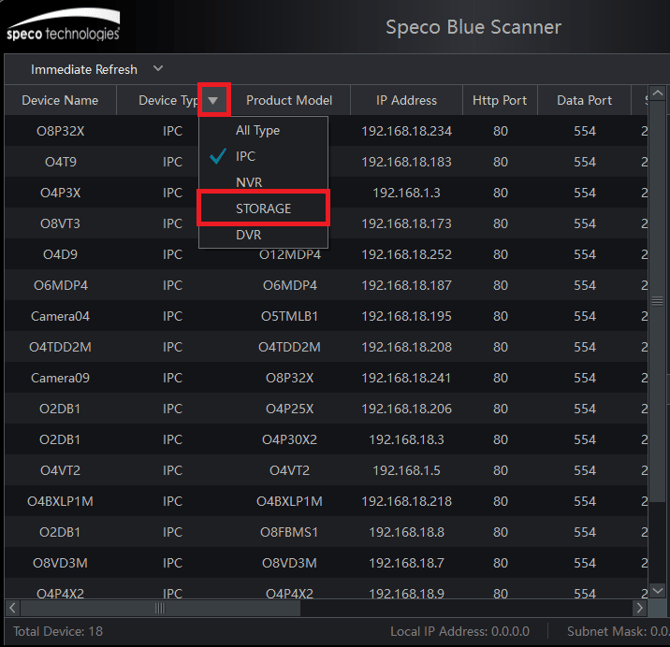
- Take note of the IP Address and Http Port for the server.
- The default port will be 8000.

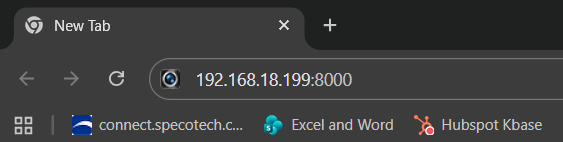
- In a web browser, enter the IP address of the server, followed by a colon ":" then enter the Http port of the server.
- In this example, the URL will be - 192.168.18.199:8000
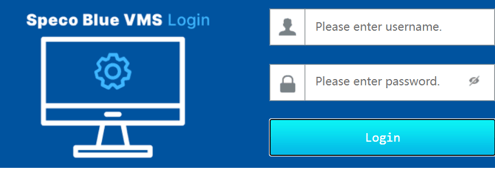
- Login with the credentials for your server.
- The default username and password will be:
- username - admin
- password - 1234
- The default username and password will be:
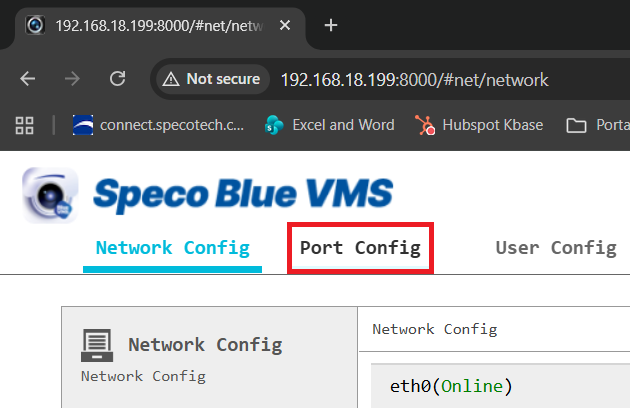
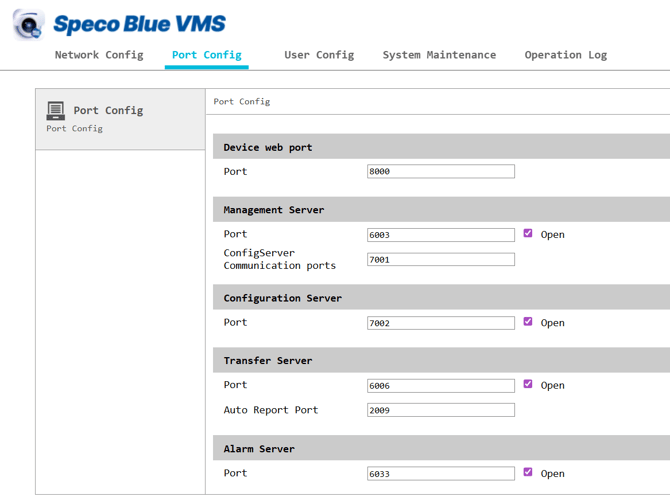
- Select Port Config
- Edit the Management Server Port and the ConfigServer Communication Port if necessary to get rid of the conflict. Scroll down to the bottom and click Apply.
- The web interface is also the only way to change the Device Web Port. All other ports can be changed physically at the server, but can be edited here as well.
-
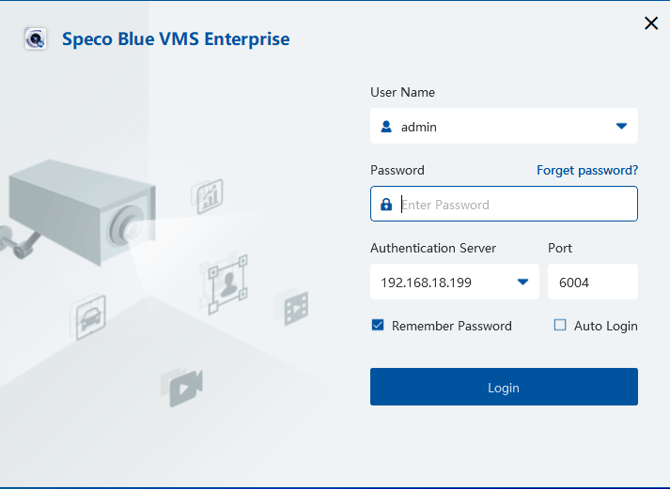
When logging into the Server via the client software, make sure you change the Authentication Server Port to the recently configured Management Server Port.
Initial submission Date: January 9th, 2026

Article authored by: Kevin Holland, Technical Support Agent - Tier 1