
Example(s) of Roles:
Dealer
-
- ABC Alarm, main POC - John
ABC Alarm’s Regional managers
-
- East region - Evan
- Corner Car Wash
- Warehouse
- Fresh Nails Salon
- North region – Natalie
- Pizza Palace
- Mini Mart
- East region - Evan
ABC Alarm’s Installers
-
- Ivan
- Isiah
Customers being monitored by ABC Alarm
-
- Corner Car Wash - 2 locations
- Owner – Charles
- Shift Manager 1 – Claire
- Shift Manager 2 - Caroline
- Warehouse (2 locations)
- Owner – Walter
- Manager both locations – Wendy
- Fresh Nails Salon (1 location)
- Owner – Frank
- Manager - Francis
- Pizza Palace (3 locations)
- Owner 1 – Paul
- Owner 2 – Patrick
- Owner 3 - Paige
- Mini Mart (3 locations)
- Owner – Michael
- Manager – Matthew
- Corner Car Wash - 2 locations
Setting up in SecureGuard Cloud
If you migrated from SecureGuard Dashboard:
- All accounts and users will be automatically migrated over.
If you were not using Secure Guard Dashboard:
- All accounts and users will need to be set up as follows
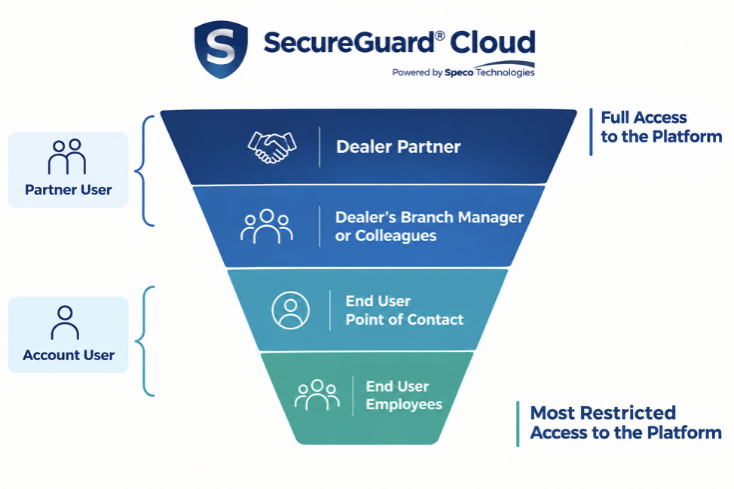
User Management
- Partner User - Typically higher-level users belonging to the dealer. Roles (and thereby permissions) will be customized. Ability to access multiple accounts.
- Installer - Ability to temporarily add an Installer with a pre-determined deactivation date. Will only have access on the Secure Guard Cloud mobile app. Can be assigned to multiple accounts.
- Ex: Installer has access for five days and then gets deleted.
- Account - Main contact at the customer’s location. Roles (and thereby permissions) will be customized. Will only have access to all sites under this account.
- User - Users who can have visibility limited to specific sites under a single account. Roles (and thereby permissions) will be customized.
John now has the ability to set Roles and Permissions for who will need access to see what. Think of this like a funnel, John has the most access, then Evan and Natalie the regional managers, then the End User’s main point of contact, and then End User’s other staff.
- Example roles may be Regional Manager, End User Owner, End User Manager.
Accounts – Corner Car Wash
Sub Levels – Corner Car Wash – Merrick, Corner Car Wash - Bellmore
Regional Managers
John will create the Regional Manager’s role with all of the permissions John wants a regional manager to have. Then create a Partner User for Evan, then for Natalie, assign the Regional Manager role and restrict which locations Evan and which locations Natalie will be able to see. When Evan signs in, he will only be able to see the three customers he oversees (Corner Car Wash, Warehouse and Fresh Nails Salon) and make any changes that John has granted to Role – Regional Manager. Natalie will only be able to see the two customers she oversees (Pizza Palace and Mini-Mart). She will not be able to see Evan’s accounts or adjust any permissions to Evan’s accounts.
Permissions may include:
- Ability to View a site, but not add or delete a site. That would stay a permission only John has access to do.
- Enable Cloud Streaming and/or Cloud Storage
- Add, Edit and View all Users
- Connect or Configure to tunnel into the NVR directly
- Add, edit and view Installers
End User Owner
John will create the End User Owner role.
Permissions may include:
- Ability to view site
- View all users
- Connect or configure to tunnel into NVR directly
- Share and Download events
Charles, Walter, Frank, Paul and Michael’s accounts would be created and added with the End User Owner roles, and grant access ONLY to their specific locations.
End User Manager
John will create the End User Manager role.
Permissions may include:
- Ability to view site
- Ability to view live stream of cameras
Shift Managers Claire and Caroline, and managers Wendy, Francis and Matthew would be created as users and assigned the End User Manager role, and granted access ONLY to their specific locations.
SecureGuard Cloud has the ability to restrict access to the web or mobile app by selecting a schedule (ex: Shift Managers can only access SecureGuard Cloud during their shift).
Access to particular cameras can be granted or hidden as well. Perhaps Michael, owner of Mini Mart only wants to grant manager Michael the ability to view the cameras in the store, and not in the back office.
Installers
Isiah and Ivan will be assigned to the installation projects. When Ivan will be dispatched to Pizza Palace’s location to install new hardware – either John or Natalie will be able to grant Ivan access to Pizza Palace’s account so he can do the installation, with an Auto-Delete timeframe. Thereby, Ivan would be able to access Pizza Palace’s account for five (5) days, to install the equipment and onboard the devices into Secure Guard Cloud using the mobile app and adjust whatever is needed. After five days, he will no longer be able to access the account.
Additional Future Users
There may be users at each of these locations that do not fit exactly into the Roles mentioned above. An example may be a security guard who the owner only wants to be able to access the cameras on a specific timeframe, or a particular manager who they do not want to grant the ability to view all users. The Regional Manager, who has the ability to Add and Edit Roles, would be able to “Clone” the End User Manager role and adjust the permissions to fit this particular need.