
- Open up your Speco Blue mobile app and make sure you are logged into your account. If you do not have one, create an account and then log in
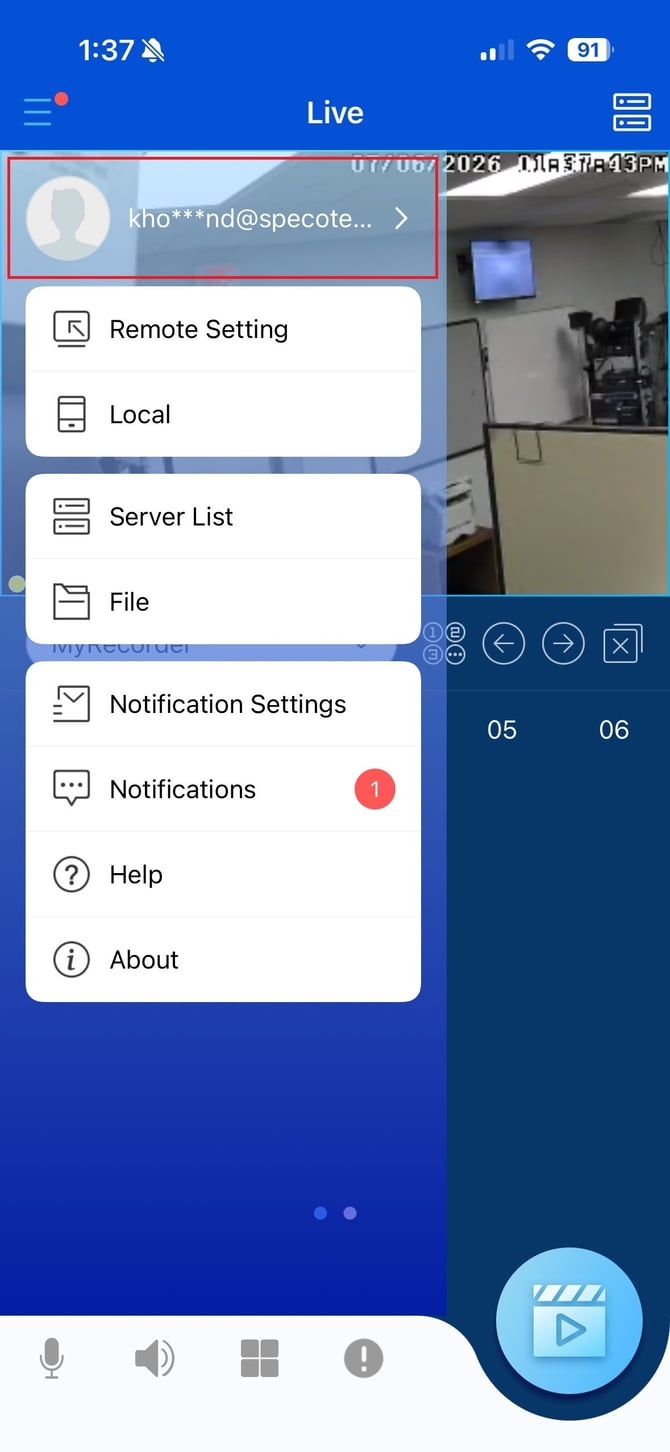
Make sure your phone is connected to your local Wi-Fi network.
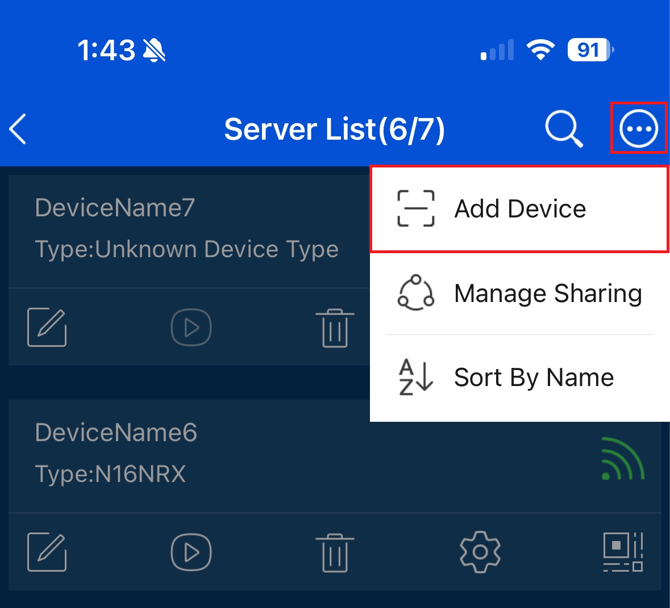
- From the live view screen, select your server list in the top right

- Select the three dots in the top right, then select Add Device
- Scan the QR code which is found on the back of the O4DB1, then select Add
-jfif.jpeg?width=670&height=1453&name=Image%20(2)-jfif.jpeg)
- Wait for the blue light to come on, click the confirm button, then select Next Step
-jfif.jpeg?width=670&height=1453&name=Image%20(3)-jfif.jpeg)
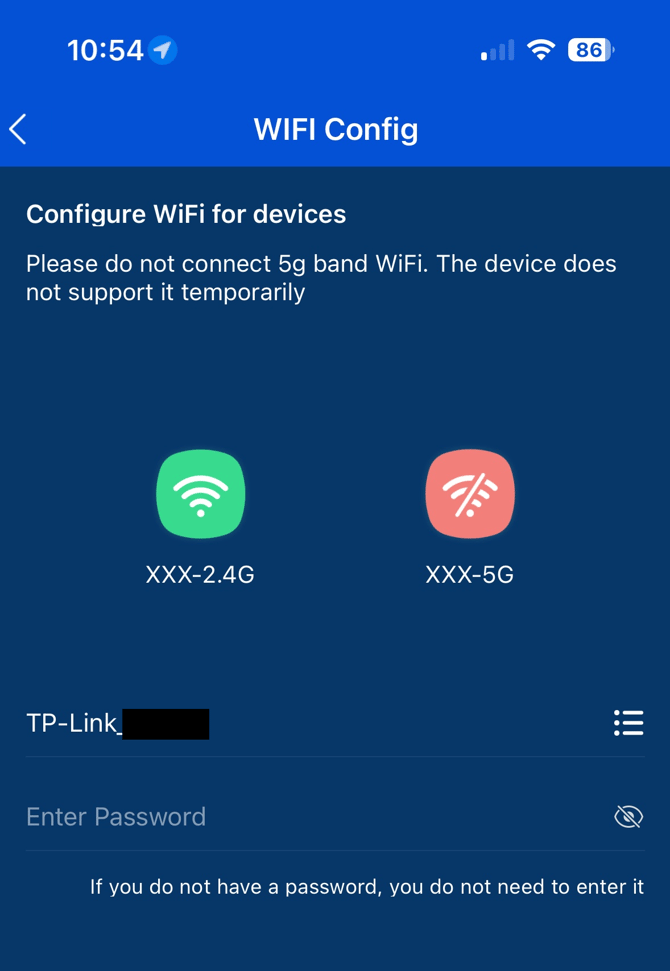
- Input your Wi-Fi networks password and select Next Step
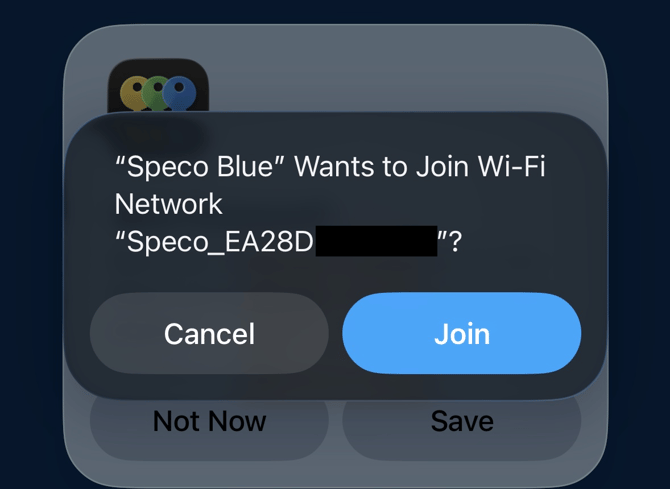
- It will ask if Speco Blue can join the Wi-Fi network. Select Join
Initial submission Date: July 16th, 2026

Article authored by: Kevin Holland, Technical Support Lead