
From Web Browser
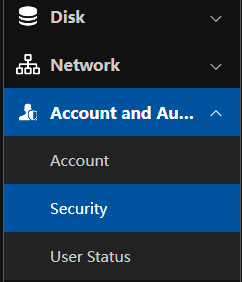
- From settings, go to Account and Authority, then select Security
- Select Enable, then select Block List. In the bottom right corner, select Add IP
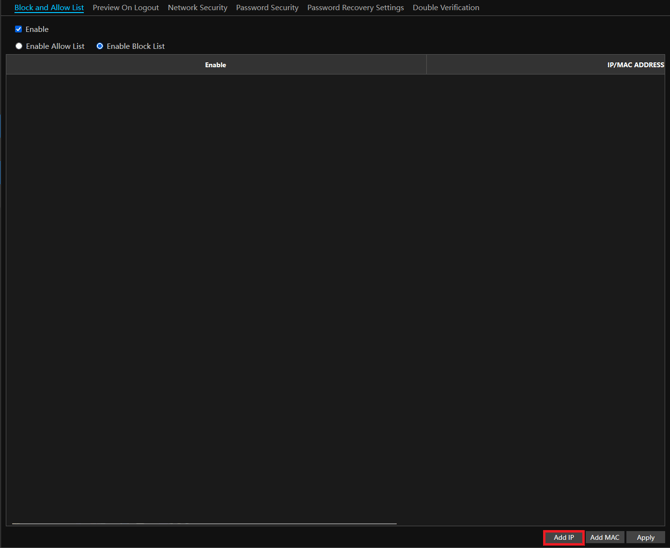
You can use a MAC address as well to block a specific device
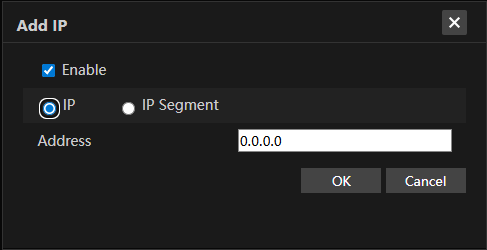
- Add an IP address that will be blocked from accessing the recorder
- You can block a range of IP addresses by selecting IP Segment. Enter the start IP address and the end IP address. In the example below, all addresses in the 25.X.X.X range will be blocked from accessing the recorder.
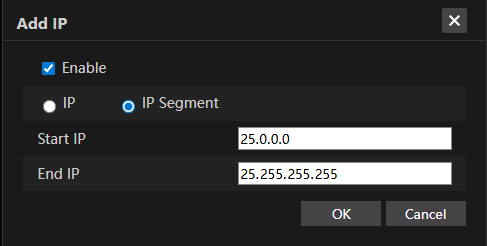
Multiple IP addresses or IP Segments can be added to the block list
Local at the Recorder
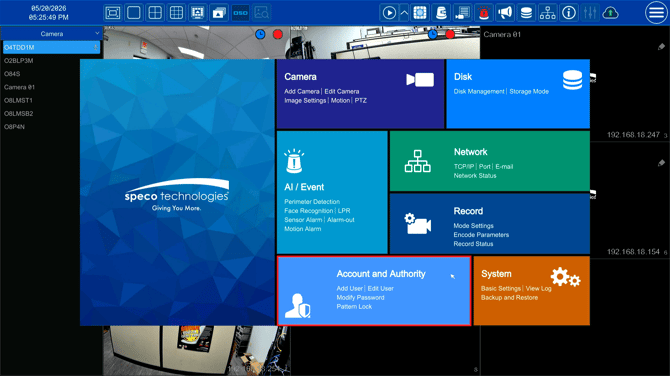
- Go to Account and Authority, then select Security
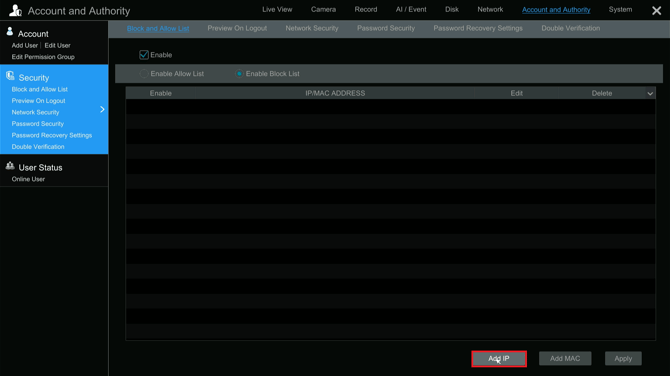
- Select Enable, then select Block List. In the bottom right corner, select Add IP
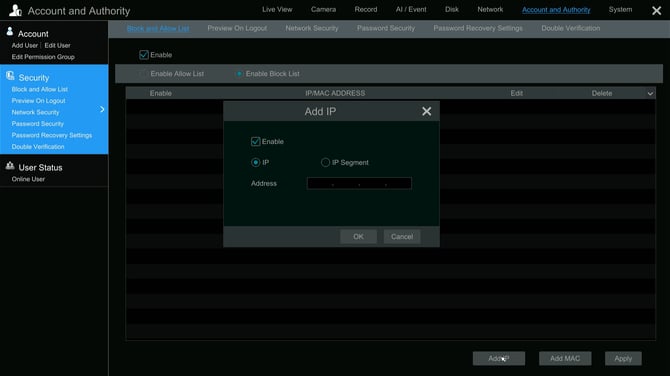
- Add an IP address that will be blocked from accessing the recorder
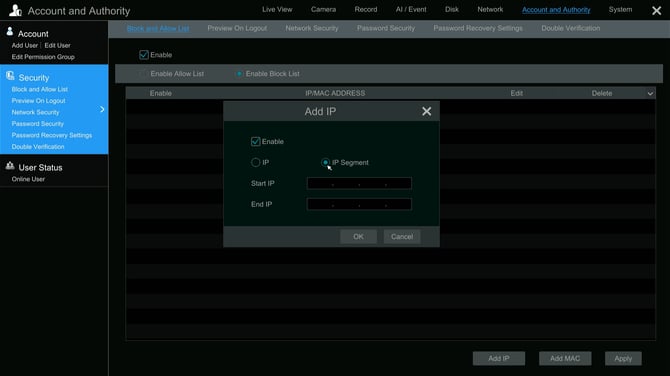
- You can block a range of IP addresses by selecting IP Segment. Enter the start IP address and the end IP address
You can also add IPs to the allowed list that will be allowed to access the recorder, however local and external IP addresses can change, so this could prevent access to verified users.
Initial submission Date: May 21st, 2026

Article authored by: Kevin Holland, Technical Support Lead