
For a guide on setting up ONVIF, click the links below.
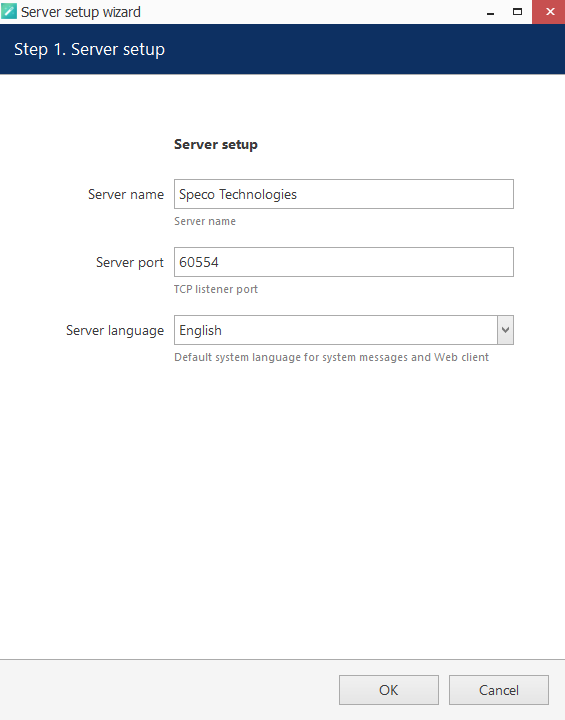
- Launch the server setup wizard and create your server
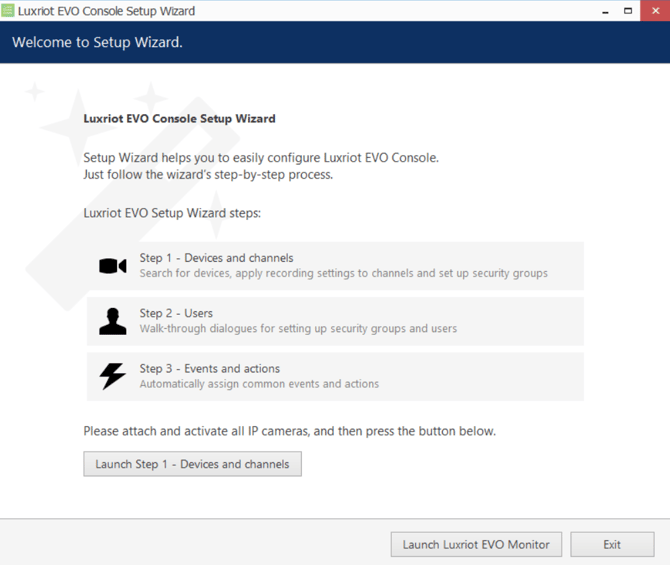
- Launch the console setup wizard and select Devices and Channels
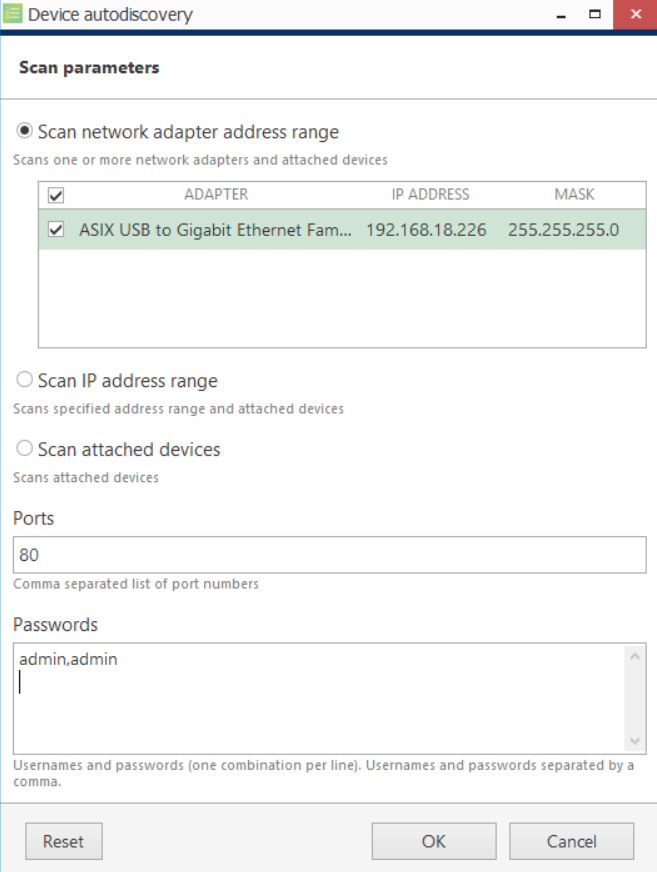
- Scan your network adaptor for devices you are trying to add. You can also input a specific IP range, or scan directly attached devices. Set the web port of the devices and input the ONVIF username and password of the devices you are trying to add.
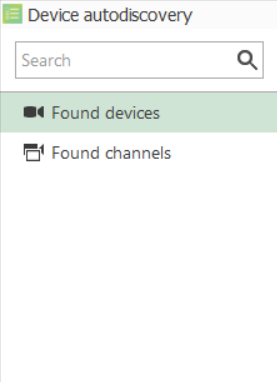
- You will see the list of devices that match the criteria you searched for. Select any cameras/recorders you would like to add.

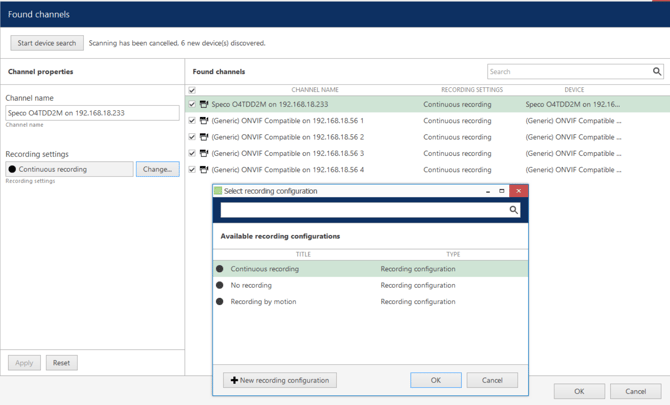
- Select Found Channels on the left once you have selected your devices.
- Set the recording schedule for each device you will add. By default, there will be Continuous Recording, No Recording, or Recording by Motion. Make sure to select Apply once you have made your changes.
- Close out Luxriot Console and launch Luxriot Monitor.
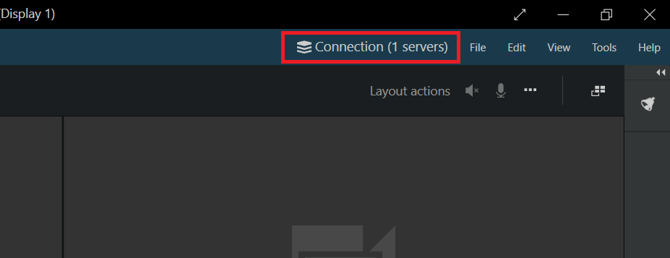
- Select Connection in the top right
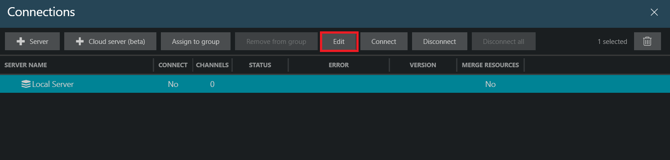
- Highlight the server you created and select Edit
-
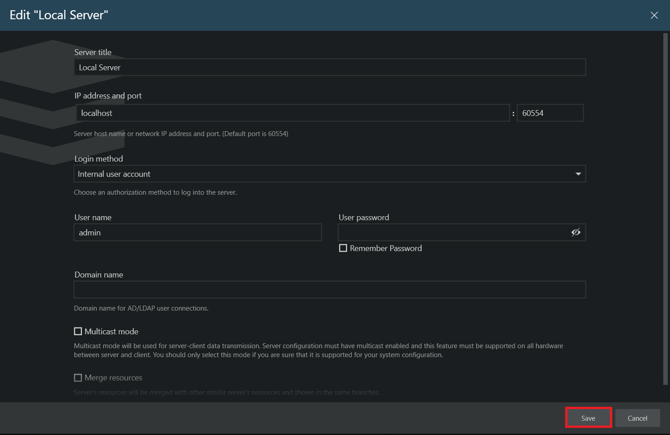
Make sure the IP address and port of the server are correct. Then, enter the username and password for the server. Select Save when you are done.
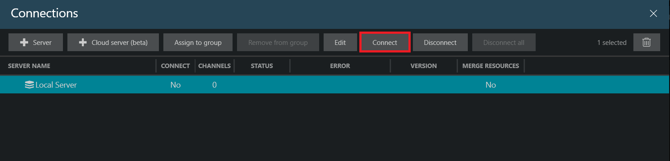
- Highlight the server and select Connect
-
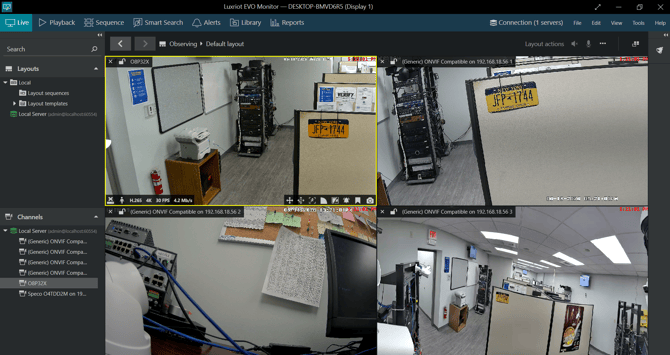
The server icon will turn green once successfully connected. From here, you can configure your live view and access playback.
Initial submission Date: June 22nd, 2026

Article authored by: Kevin Holland, Technical Support Lead