
- First, Navigate to the admin portal using https://partner.specotech.cloud
- Under the manage accounts section,
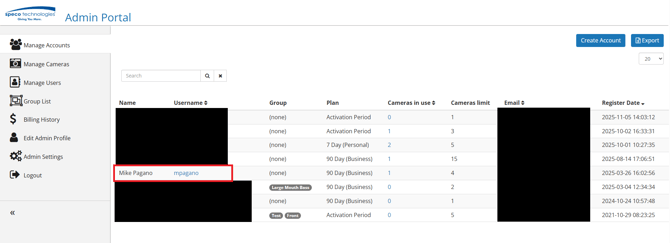
- Click on the desired account and then the plan/payment tab.
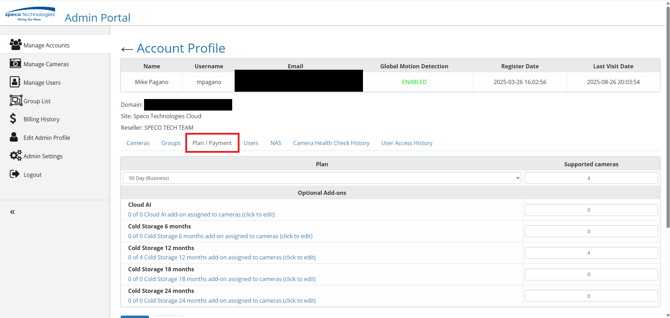
- Under plan, select a business plan and press OK to save changes
- Please note: Only business plans will support cold storage

- Specify how many cameras will be utilized and click Update
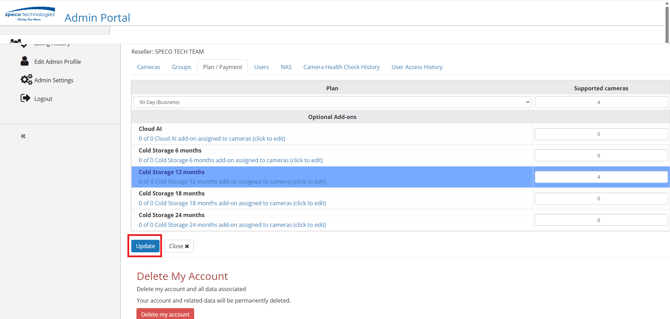
- Navigate back to the plan/payment tab and
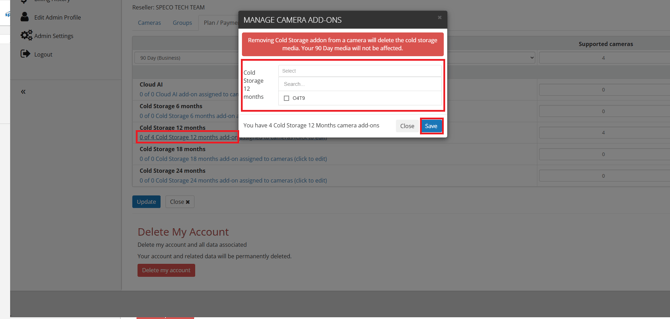
- Click on the edit link for the previously selected cold storage plan.
- Select the desired cameras for cold storage and click Save.
Retrieving cold storage:
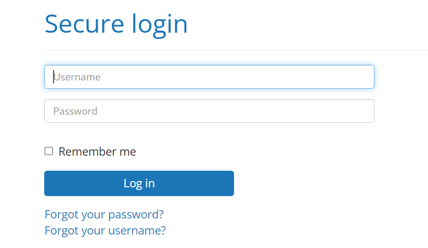
- Log in to the customer portal with the customer created credentials.
- The URL will be defined on the admin side and will be follow the format of https://**AdminDefinedUser**.specotech.cloud
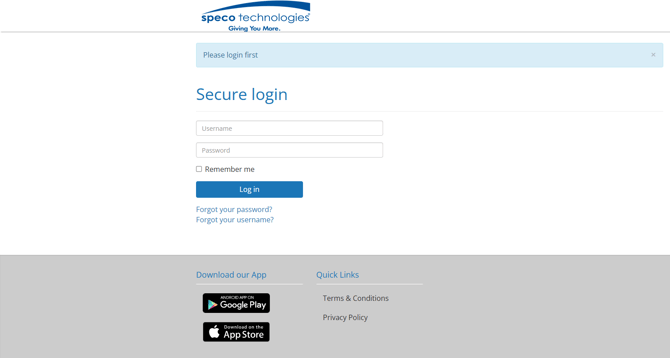
- The URL will be defined on the admin side and will be follow the format of https://**AdminDefinedUser**.specotech.cloud
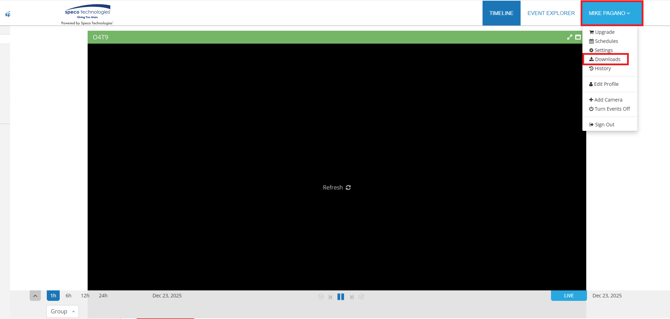
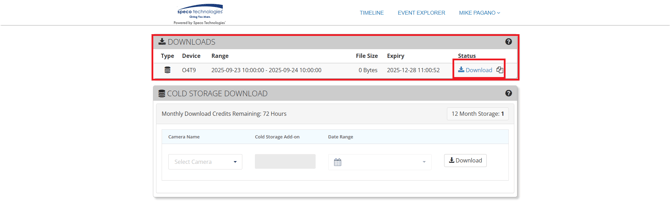
- Select Downloads from the top right menu
- Select the desired camera from the drop-down menu and then specify a time frame
- Click the download button and press OK on the window that pops up
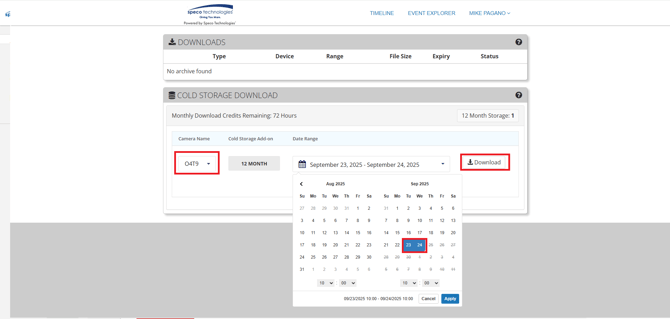
- The footage can then be seen and then downloaded from the downloads section
Initial submission Date: December 23, 2025

Article authored by: Michael Pagano, Technical Support Agent - Tier 1