
Note: A SIP line needs to be established beforehand. If you do not have a SIP line please consult this guide for setting one up through Linphone: https://info.specotech.com/how-to-setup-a-sip-account-for-speco-ip-speakers
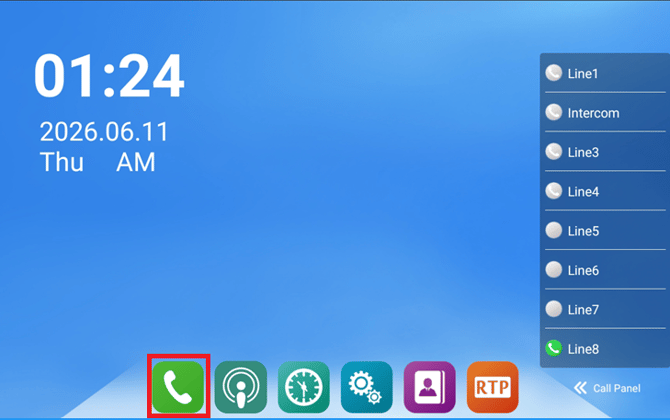
First, navigate to the calling app within the paging device
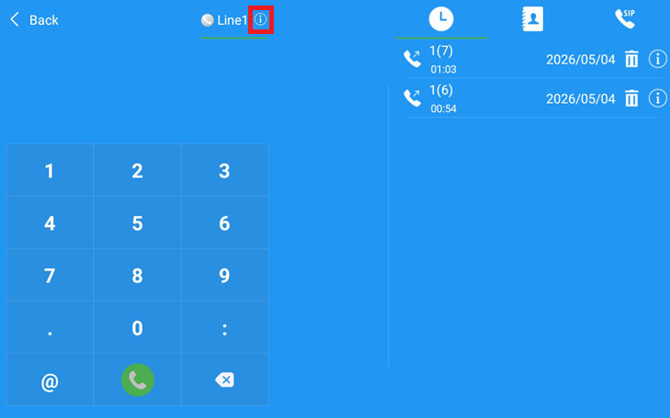
Next, select a sip line and hit the "i" icon to edit the line
From here, Input your information.
Name: The chosen name for the SIP line and how it appears in the call menu
Server: The address pointing to the SIP server that is set up
Port: The network port in use for the SIP server
Account: The account username that is registered with the SIP account
Password: The password associated with the SIP account
Expire time: Time in seconds in which the call will terminate if there is no reception

Once the SIP line has been added, this can then be added as a contact and called from the calling app.
To create this contact, Navigate to the contact section and click the + Icon


Name and organization can be configured based on preference, number will be the number listed on the SIP tab, speed dial key will be the key used to dial this line.
An example number will read out sip:(Account Name)@sip.linphone.org
Once completed, click save.
The number can now be dialed from the keypad with it's corresponding speed dial number.
This can also be called from the contacts. Click on the back button and return to the home screen of the calling app and click on one of the "Add New" icons.


Click on the contacts option and the + Icon to associate this with the created contact. Name will be of preference.
Once saved, navigate back, and there will be a new icon with the associated contact. Clicking that contact will make a direct call.
Initial Submission Date: July 16th, 2026

Article authored by Michael Pagano, Technical Support Agent