
How to add a Recorder
- Log into your recorder and go to the Settings > Network > NAT to find your QR Code. It will start with a capital N.
-
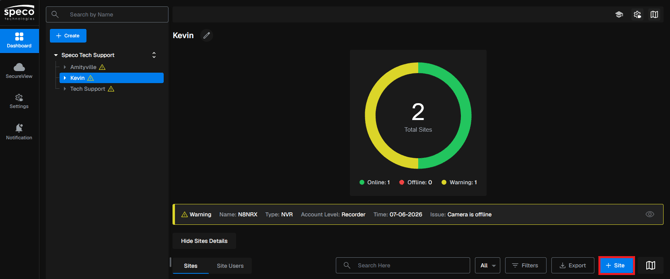
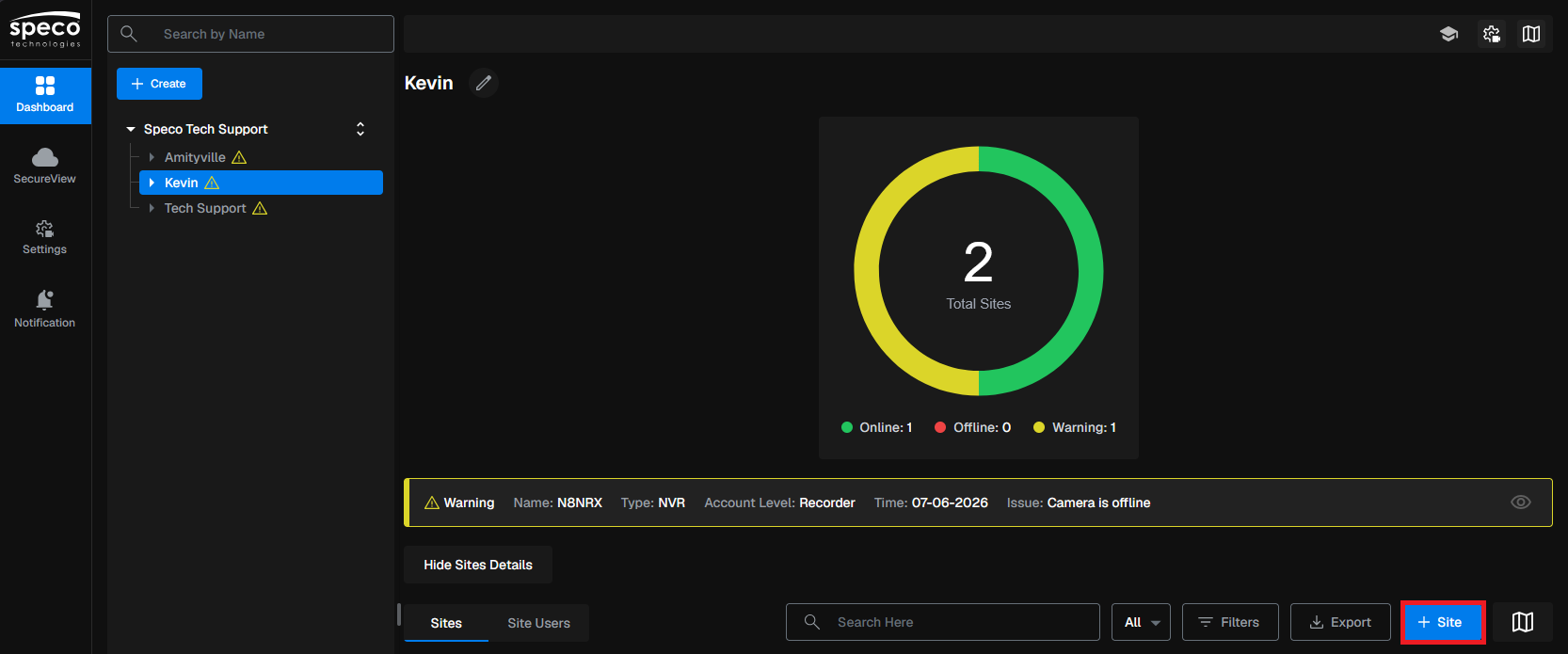
Sign into your SG Cloud username and select an account you would to add a site to. Select the blue site button.
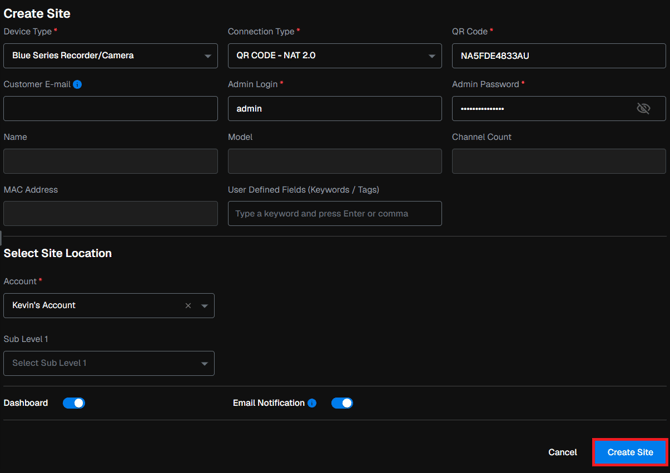
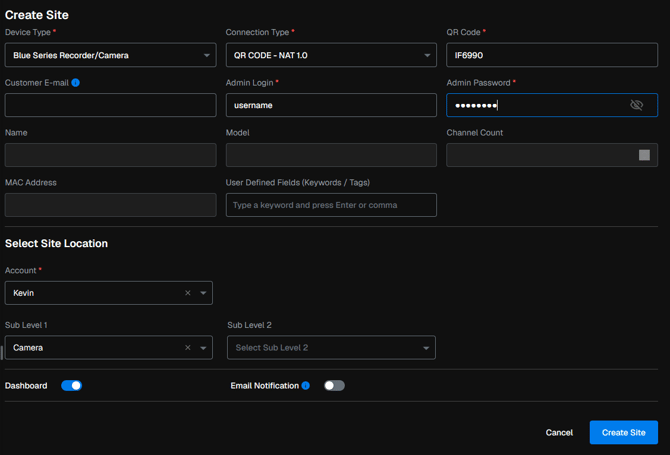
- Input the QR Code, admin username/password, select NAT 2.0 and which Account / Sublevel you would like to place the recorder under. Select Create Site once complete.
How to add an IP camera
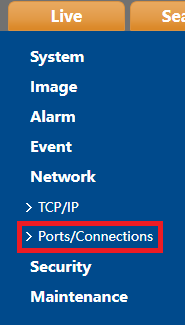
- Log into your camera and select Config. Under Network, select Ports / Connections.
- Select P2P.

-
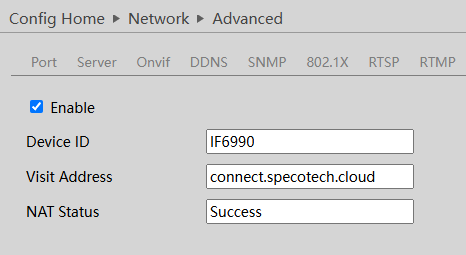
Enable P2P, then make sure the NAT status says success. Copy the Device ID.
- Under the account you'd like to add the camera to, select the blue site button.
- Input the QR Code, admin username/password, select NAT 1.0 or NAT 2.0 and which Account / Sublevel you would like to place the create under. Select Create Site once complete.
Cameras with a 5.1 firmware version will support NAT 1.0.
Cameras with a 5.2 or 5.3 firmware version will support NAT 2.0
Initial submission Date: July 14th, 2026

Article authored by: Kevin Holland, Technical Support Lead