
Image Search by Face
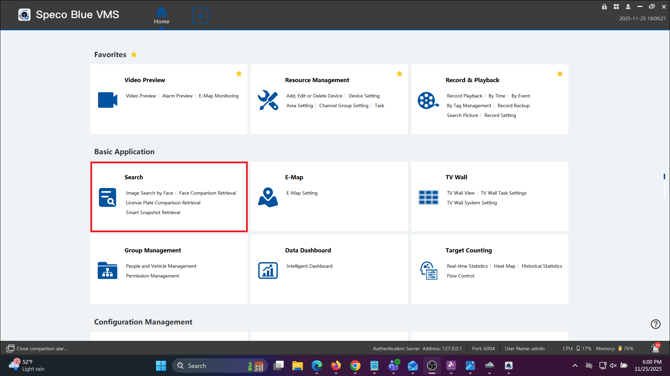
- Select Search
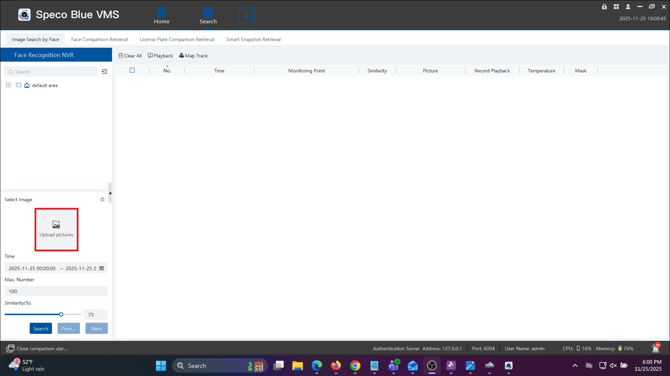
- Select Upload Pictures
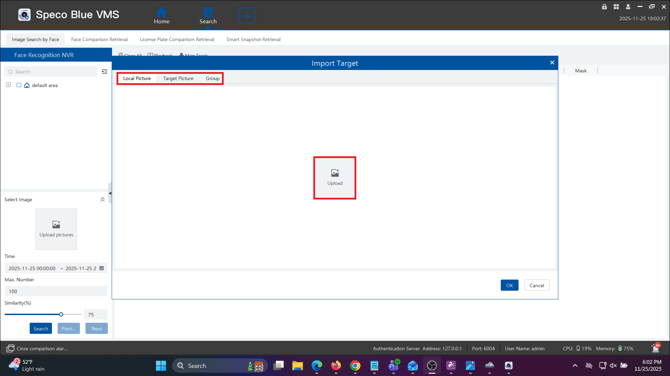
- Select how you would like to upload your image
- Local Picture - Upload a photo directly from your PC
- Target Picture - Select a screenshot from one of your added recorders
- Group - Select a screenshot from a user added to a group in VMS
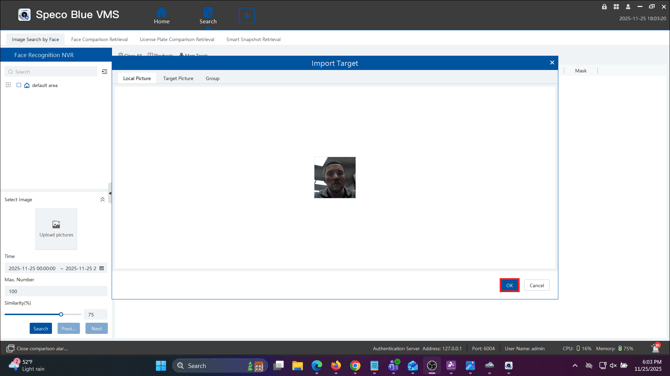
- Whichever method you choose, select your photo and click OK
- Select your Areas/Recorders where you will be searching from
- Select the date and time you'd like to search from
- Select the similarity threshold and click Search
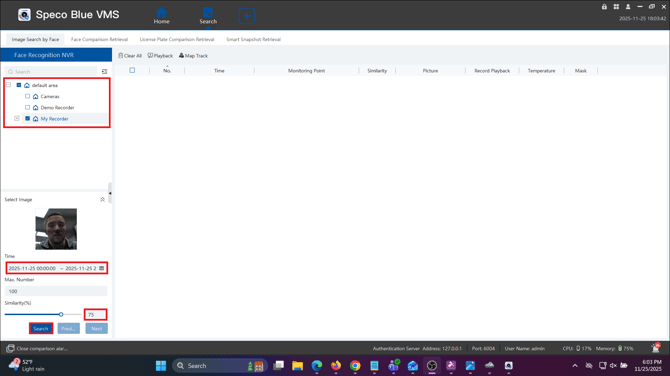
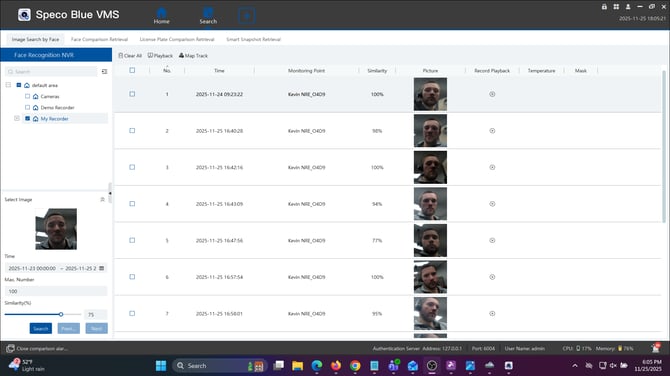
- You will be shown all the screenshots that match the parameters you set. You can click the play button under Record Playback to be shown a short video clip
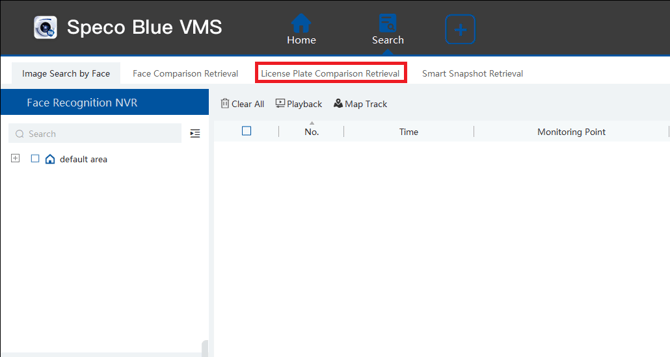
License Plate Comparison Retrieval
- From the Search page, select License Plate Comparison Retrieval
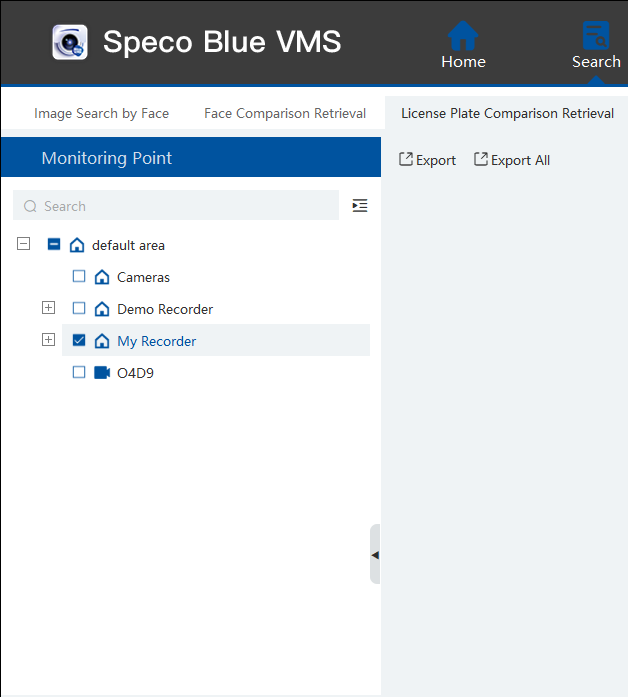
- Select your Area/Recorder that has your LPR camera
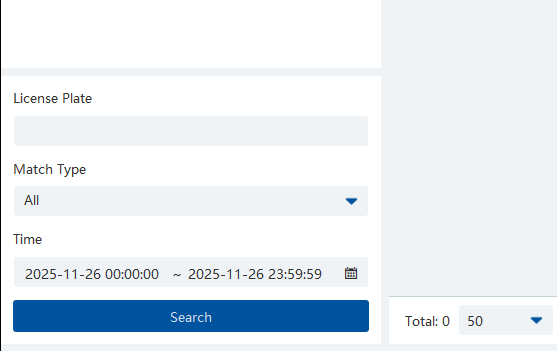
- Input a license plate number, select a match type and select the date and time, then click Search
- License Plate - Enter a specific license plate number to search for. Leaving it blank will show all license plates the camera has picked up.
- Match Type - Allows you to search for vehicle plates added to a Vehicle Registration List under Group Management.
- Time - Screenshots will only come up between the selected dates you choose.
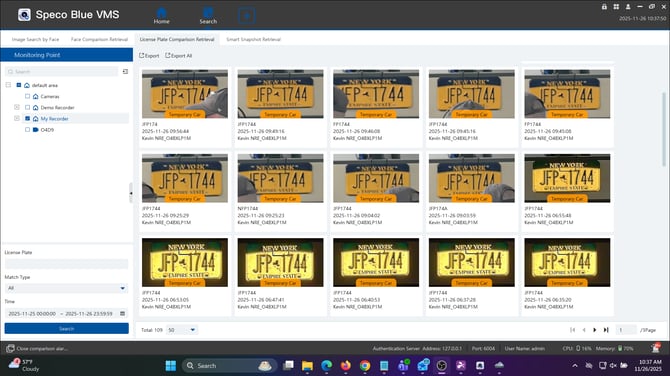
- You will see all the license plates picked up that match the parameters you set.
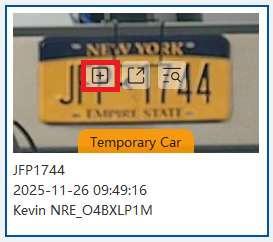
- You can hover over a snapshot and click the "+" to add the plate to a vehicle group
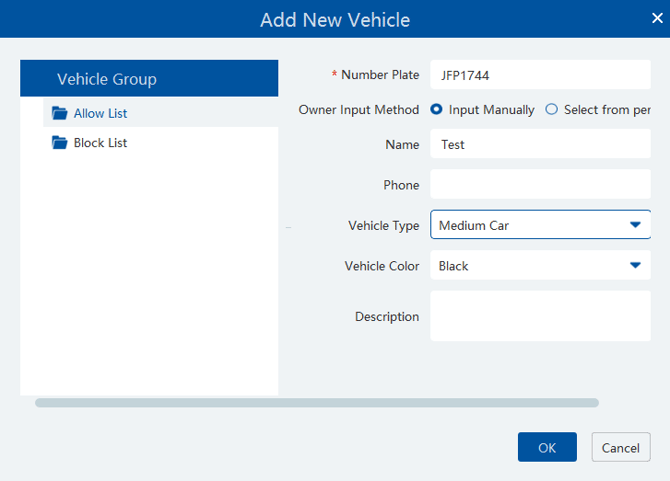
- Select either the Allow or Block List and input the information to add this plate into the group
- The next time this plate is picked up, it will be tagged with allow list or block list
- From the License Plate Comparison Retrieval screen, select Match Type to pick between plates in the allow list, block list, or plates that have not been added to a group
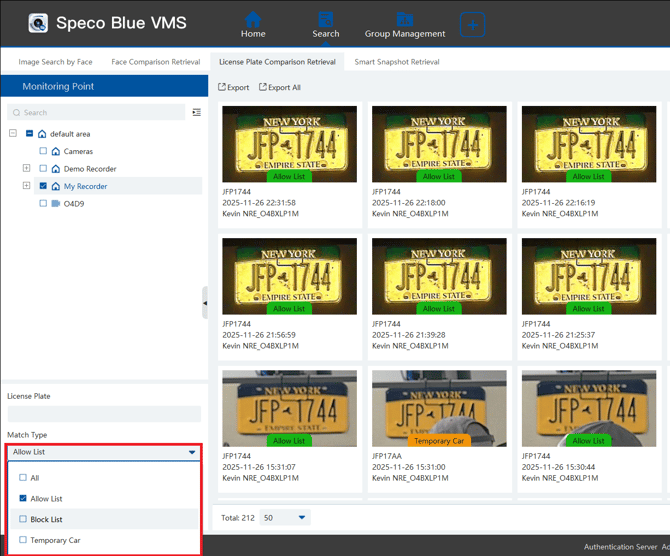
- You can also directly input a license plate number to pull up screenshots of that plate

Smart Snapshot Retrieval
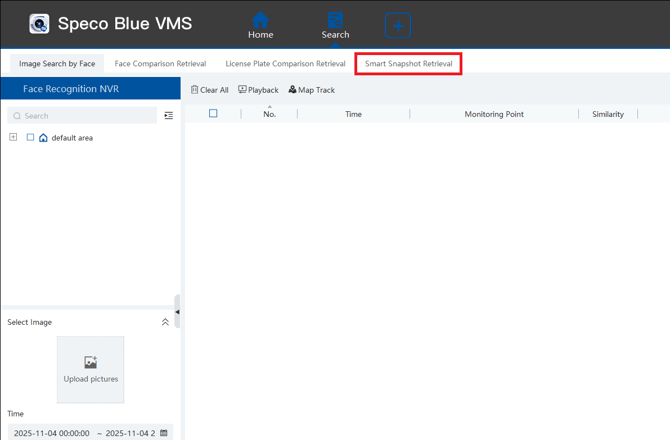
- Select Smart Snapshot Retrieval
- Select between Face, Human, Motor Vehicle and Non-Motor Vehicle for Match Type
- Select your Search Source. Intelligent Server will be used for all searches except for Face

- Select your Monitoring Point, Date and Time, then select Search
- For this to work, Snapshots and Metadata must be enabled in the recorder
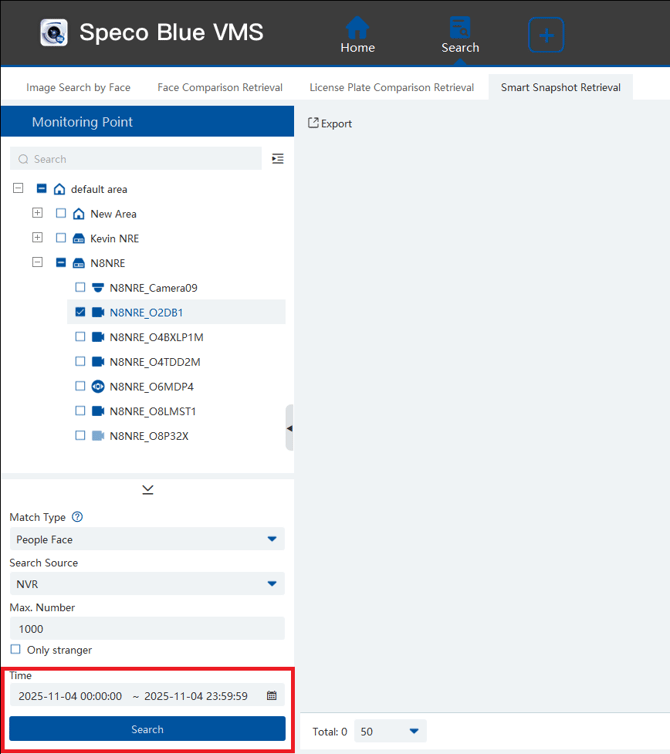
- Any snapshots matching the type you selected during that timeframe will be displayed for you to view
Initial submission Date: December 1st, 2025

Article authored by: Kevin Holland, Technical Support Agent - Tier 1